
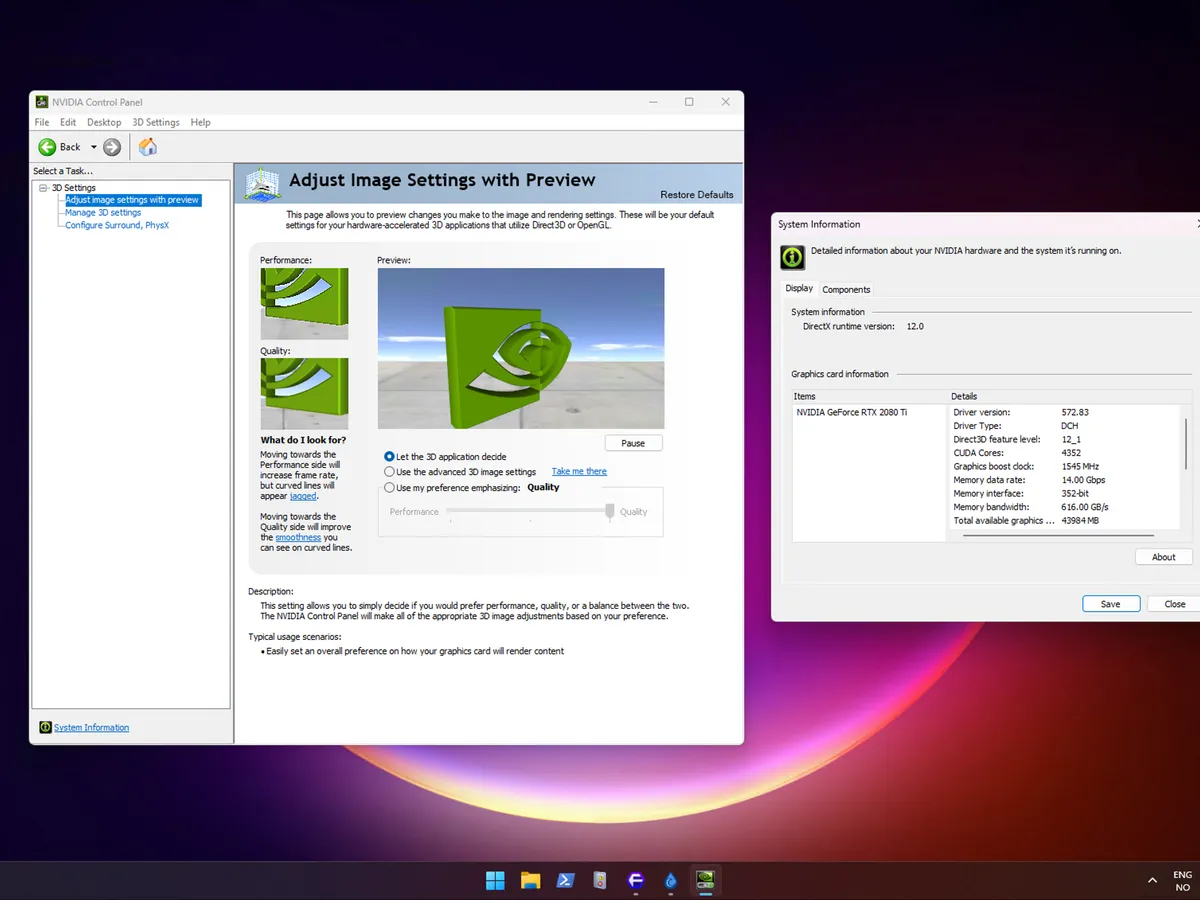
Where to download Nvidia Control Panel
Nvidia is retiring the classic Control Panel after 20 years. If you came here for the link, that is it above. It is free, published by Nvidia themselves, and works on Windows 10 and Windows 11.
Click the link above to get it, or:
- Open the Microsoft Store on Windows.
- Search for “Nvidia Control Panel”.
- Click Install.
A few things worth knowing before you do:
- You need a working Nvidia driver installed first, either from the Nvidia website or guru3d.com. The Control Panel does nothing on its own.
- It is the same application Nvidia has shipped with drivers for years, so it is safe to install.
- It does not conflict with the Nvidia app. The two are designed to coexist, and the app stays the primary place for new features.
- Nvidia has confirmed they will stop adding fixes, features, or changes to this version. It is frozen.
Frozen in time, but functional.
What Nvidia actually announced
Tucked into the May 2026 Game Ready Driver 581.47 release thread, Nvidia confirmed that they are pulling the plug on our beloved Nvidia Control Panel. After 20 years. The interface we are saying goodbye to has been with us, unchanged by the looks of it, since 2006.
“After 20 years of dedicated service, the classic Nvidia Control Panel is officially retiring for Game Ready and Studio Drivers.” — Nvidia, GRD 581.47 release notes
Where the features went: the Nvidia app
All actively supported Control Panel features have been modernized and moved into the Nvidia app. From here on, that’s the app where you get all your Nvidia fixes, like refresh rate, new driver updates, tune colors and “magically” adjust the games to your hardware.
Your control panel is safe, for now
If you already have the Control Panel on your system, it will stay there, but it will not get new features. A clean driver install on a fresh system, on the other hand, will not bring it back.
It is a quiet end for software that survived the entire GeForce Experience saga. The 2013 split that scattered settings across two apps, the 2016 forced login that made everyone furious for the privilege of downloading drivers. Through all of it, the Control Panel just sat there with its green and alluring icon on all our desktops. Our muscle memory fine tuned to exactly where it was. Slow to launch, rotating Nvidia logo, laggy between pages, but always there.
Nvidia Profile Inspector for the experimenters
If you are the kind of person who actually misses the Control Panel because of what it could do, not what it looked like, the real alternative is not the Nvidia app. It is Nvidia Profile Inspector, a third-party tool by Orbmu2k that hooks into the same driver profile database Nvidia themselves use.
Inspector exposes every hidden, undocumented, and experimental setting Nvidia never bothered to put in a UI. Per-game DLSS overrides, DLSS Ray Reconstruction and Frame Generation overrides, the older frame rate limiters, the full vsync mode list, prerendered frames, texture filtering quality, bitmask flags. It is MIT licensed, actively maintained, and well trusted in the power-user corner of the community.
The catch is that a lot of those toggles are experimental or version-specific. Per-profile changes are safer than global ones, and a sensible workflow is to back up your profile before going wild. It is not a replacement for the everyday Control Panel stuff like resolution and color setup, the app owns that now. But for the actual fiddling, Inspector goes further than Nvidia’s own UI ever did.
Why I still tweak my own settings
I bet most of us have a relationship with the Nvidia Control Panel. It is the place you went to check what refresh rate your monitor was actually running. To verify a driver version. To fiddle with color and gamma. To set a global frame cap, or a per-game one when a title was running hot. After 20 years of the same menus, you stopped reading the labels. Pure muscle memory.
I am old school. I download my drivers from Guru3d or Nvidia Clean install. I’ve never trusted GeForce with applying “ideal” settings for my machine. I tweak. I adjust. That is half the joy of PC gaming for me, the testing, the tuning, the quiet hunt for a stable framerate while keeping my RTX 4080 as quiet as possible.
So if you, like me, want the old panel on your next clean install, bookmark the Microsoft Store link. And then ask yourself: are you actually still using it, or are you just sentimental?
