
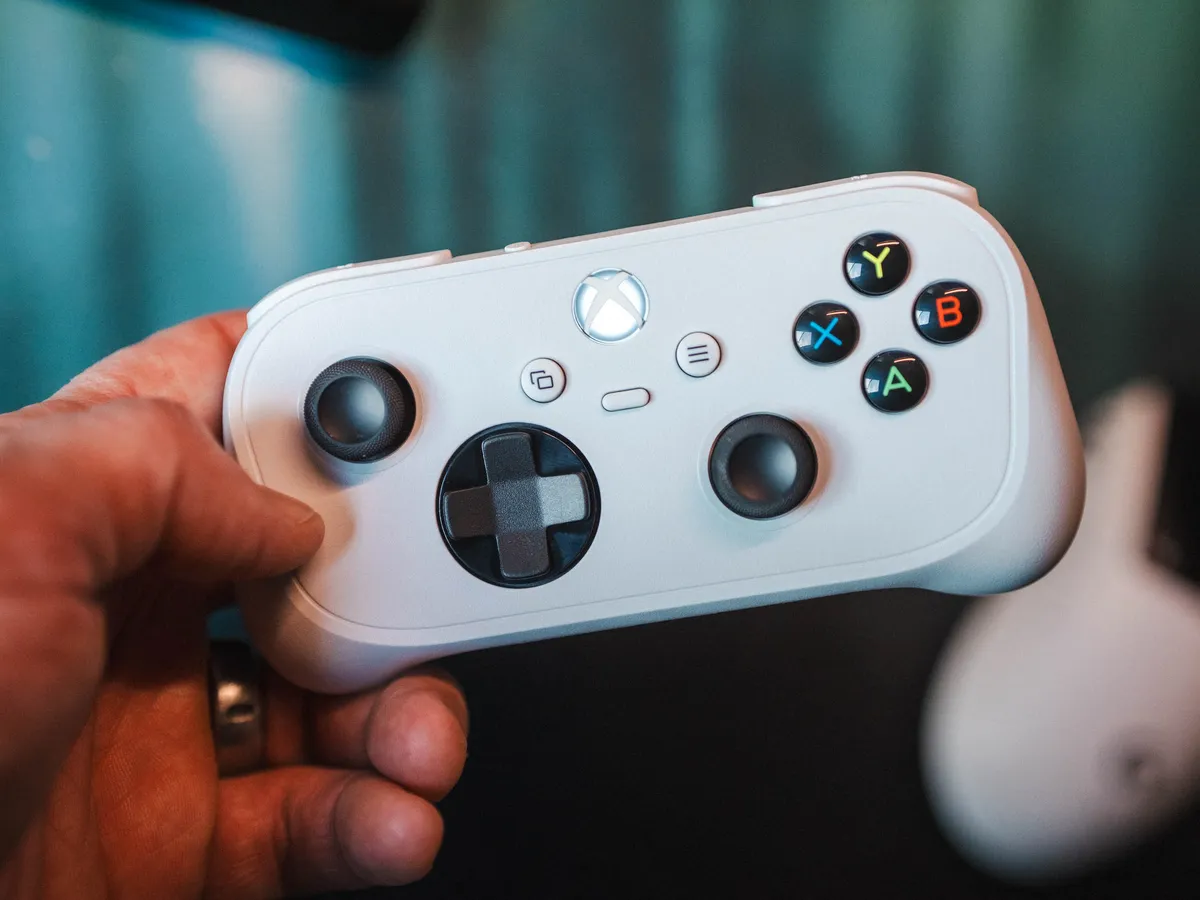
If your Xbox Nano Controller keeps disconnecting
Is your Xbox Nano Controller stuck in an endless connecting, disconnecting loop? I might not be the only one who experienced this, so here is the fix.
- Turn off Bluetooth on your PC, and on any other device the controller is paired with, like your phone.
- Download and open Xbox Accessories.
- Connect the Xbox Nano Controller to the machine with a USB-C cable.
- Update firmware, restart as described in the Xbox Accessories app.
Once updated and working, you can disconnect the cable and use Bluetooth as you please.
How to connect the Xbox Nano Controller to a PC, the right way
I did it wrong, and I learned the hard way, so here goes the correct way to do it:
- Take the controller out of the box.
- Find a USB-C cable and plug it into your PC. Turn the controller on with the Xbox button in the middle.
- Download the Xbox Accessories app.
- Update the firmware and restart as described in the app.
The first thing I tried was connecting it over Bluetooth, and that did not work. So I wrote this little guide for you and anyone else having the same problem.
Xbox Nano Controller over Bluetooth
Want to use Bluetooth? Then do the steps above first. If you don’t update the firmware first, the controller ends up in an endless loop of connecting, disconnecting, connecting and so on.
It is close to impossible to update the firmware while the controller is stuck in that endless cycle of disconnecting and reconnecting.
That’s why I recommend turning Bluetooth off on your PC, so the controller lets go of the Bluetooth connection and is ready for the firmware update.
Connected, disconnected, connected, disconnected
Here’s what happened when I did it wrong. I connected the Xbox Nano Controller to my PC, and it would not stay connected.
I did what most of us do. I didn’t read what was on the box, hit the search icon in Windows, looked up Bluetooth and paired the controller from there. Windows is a bit janky at that part, but eventually it showed up.
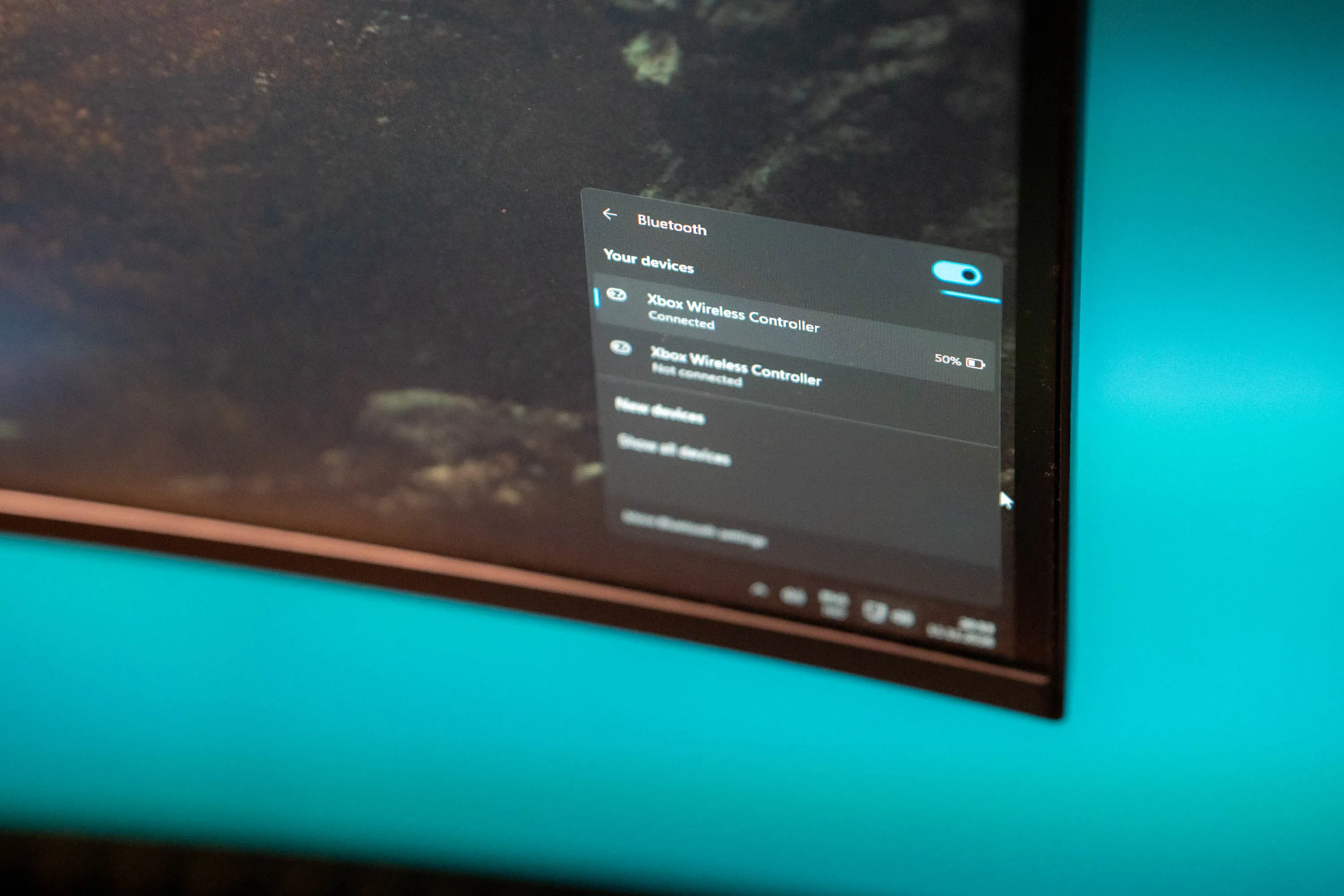 Windows just calls the Nano controller “Xbox Wireless Controller”. Here it is in the Bluetooth menu. / Credit: kaytomas.com
Then the trouble started. Steam kept telling me the controller had connected, disconnected, connected, disconnected. I launched a game to see if it would settle down. It didn’t.
Xbox Accessories didn’t help while Bluetooth was on
The box tells you to go to xbox.com/nano-controller-setup, which sends you on to the Xbox Accessories app in Windows. There was a firmware update waiting. But the controller kept dropping out. The app would show the update for a brief moment, and then the controller was gone again.
I plugged in a USB-C cable and turned the controller off and on. The app then said the update was downloading in the background and would install the next time the controller restarted. But the download got stuck at five to ten percent, every time.
The culprit was Bluetooth. Even with the cable plugged in, the controller found my PC over Bluetooth and connected there, and that killed the update. My theory is that the Bluetooth part of the firmware it ships with simply isn’t stable enough, and that this is exactly what the update is meant to fix. Pretty annoying when the bug blocks the very update that fixes it.
With the cable in and Bluetooth turned off on the PC, the update went through. After the first restart there was another update waiting, so check the app one more time before you pair it over Bluetooth.
Read the box first
Had I followed the instructions on the box, I would have skipped the whole ordeal. It takes a few minutes, and you won’t be left wondering whether it’s the controller or the PC that’s broken.
The full review of the controller is coming. I’m going to play Rocket League with it, see how it does over Bluetooth after the update, and not least let my kids try it.
