
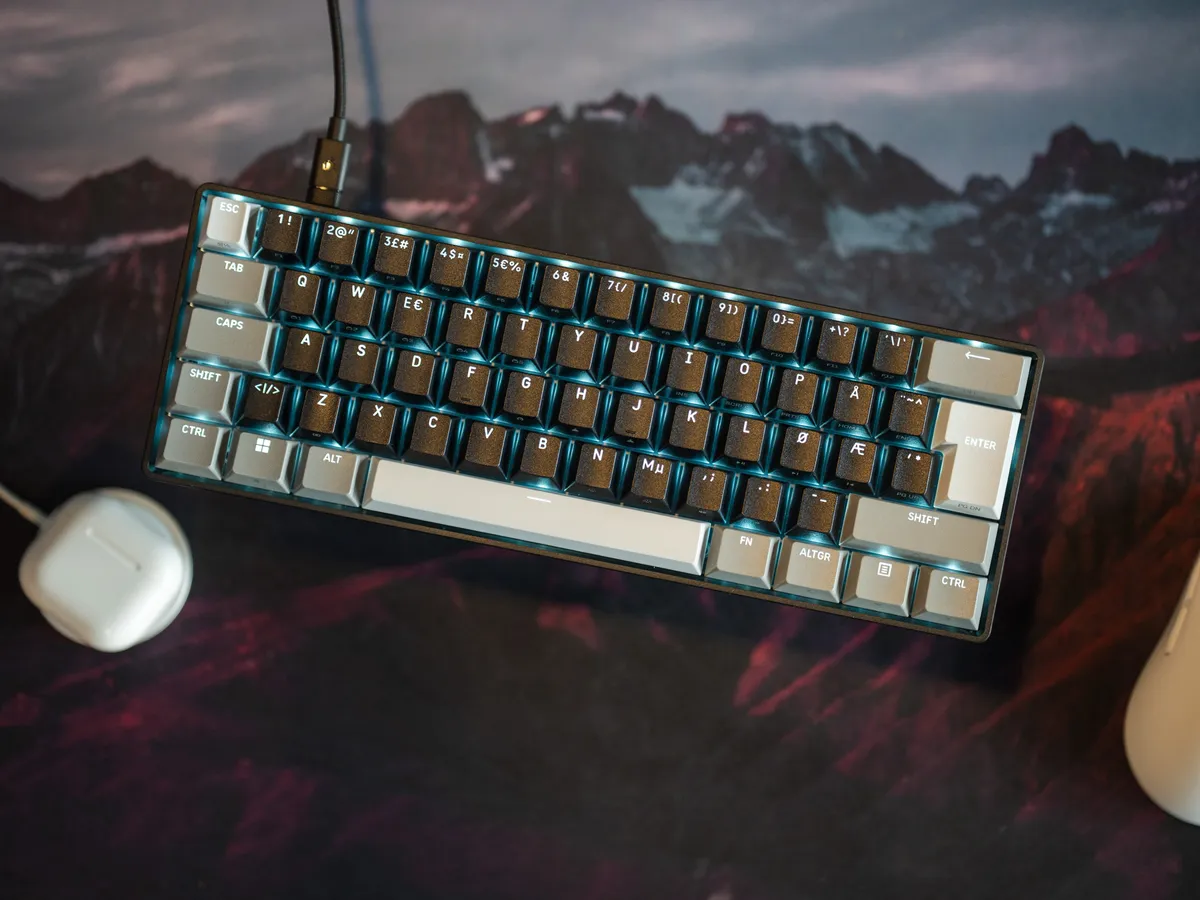
A nice cheap 60%
Finally a 60% on the test bench, and it’s been a while since I’ve dabbled with a 60% keyboard - not since the Norwegian Mekanisk Klippe was in use at my home office about 4-5 years ago.
The Clipper Pro Mini 60% is a budget keyboard with HE switches from Corsair. It’s a much smaller, and cheaper, option than the last Corsair keyboard I tested, the MAKR Pro.
I have the Nordic ISO version, and in the box you get two extra keycaps (ø and æ) and a detachable braided USB-C to USB-A cable. And that’s it! No tools or other unnecessary bits.
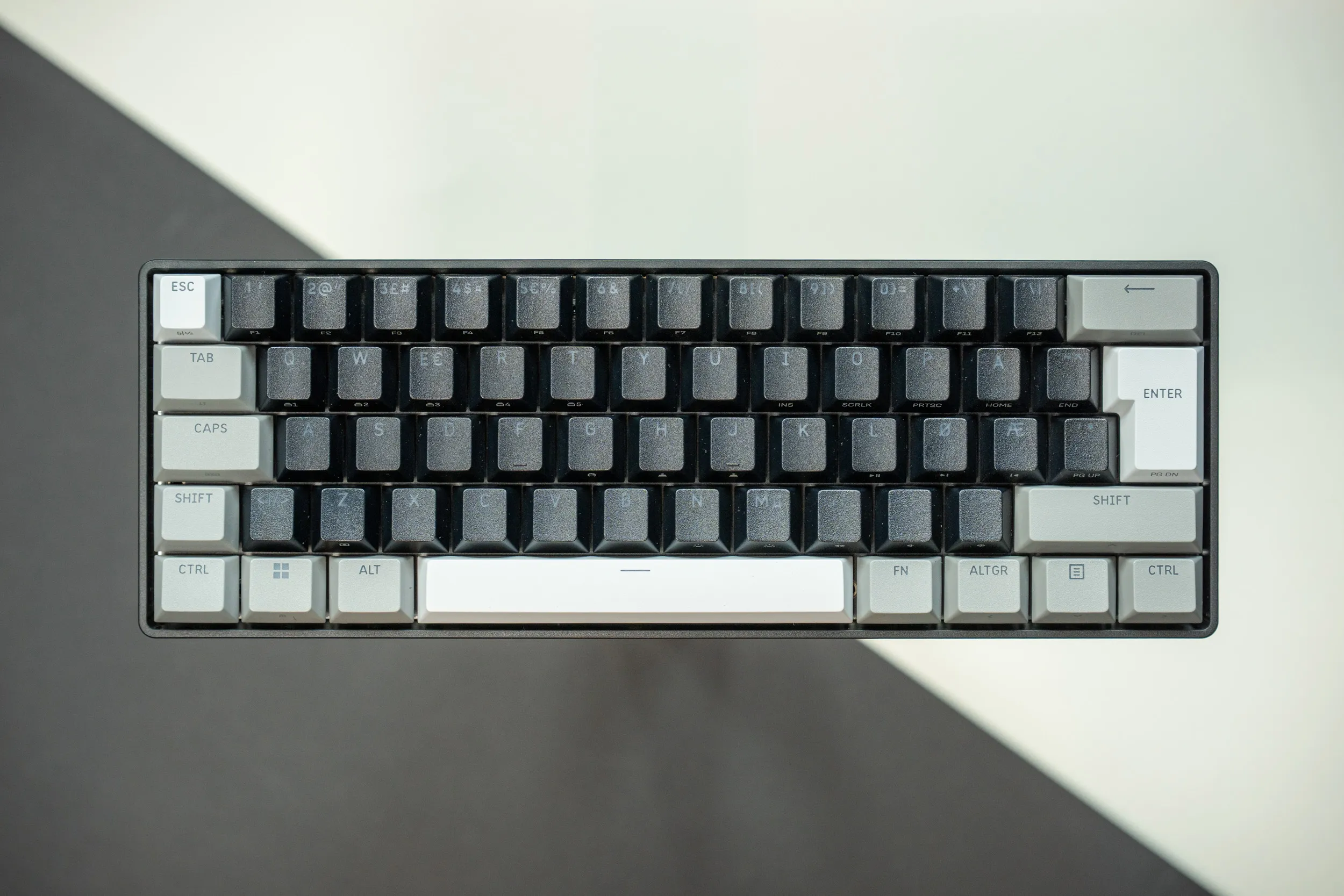 Compact 60 percent layout in black, grey and white. | Credit kaytomas.com
The first time I took it out of the box, I immediately noticed how light it was. I later confirmed it on my Hario coffee scale, a featherweight 415 grams.
I also noted that it was surprisingly good to type on. The first time I let my fingers majestically dance over the PBT keycaps, it felt precise and nice. The sound was nothing to complain about either, it’s lighter and sharper than pricier keyboards - but still good, price considered.
On the underside you’ll find adjustable feet with three levels total. Flat (feet fully folded in), halfway, or full. I’m comfortable typing in all of these positions.
Unlike on the MAKR PRO, the feet tuck into the lowest position with no risk of going missing (they are detachable on the MAKR). The USB-C cable connects on the left side. There’s no Windows/Mac switch on this one either, nor a tri-mode button, since it doesn’t come with 2.4 GHz, Bluetooth or battery power.
Another positive at this price point is the fact the Clipper is IP57 rated, meaning dust protected and able to survive (as per the IP57 spec), being submerged in up to a metre of water for 30 minutes. Hall Effect helps here, since switches without exposed metal contacts are easier to seal. Corsair says the rating was achieved in lab testing. This is obviously something I have not tested, since my office is above water. A solid spec nonetheless!
Throughout the whole test period of a couple of weeks, this was my office keyboard, used for typing in a small open office.
Aesthetically I think the whole keyboard is pretty stylishly done. The keycaps come in black, grey and white colors. Esc, enter and the spacebar are white. The regular keys are black, while ctrl, alt, backspace and those ones are grey. Simple, yet stylish.
The RGB is good too, you can adjust individual keys with their own colours, and it has 11 different modes if you don’t count the various speeds. I’m not that into RGB, but I can be inclined to run a slow fade between different colours, or set a static one for the stills. Either way, I like that you get a solid implementation of RGB for your hard earned money here.
It also supports Xbox and PlayStation. I haven’t tested that myself, but for those of you who care, it presumably supports what you’re already used to and expect.
All in all, after the test period, maybe my biggest annoyance is that the cable has USB-A on the end that goes into the machine. I feel an adapter should be included. Worth mentioning that this little problem applies to several other manufacturers too, even in 2026. That is, all things considered, a very small annoyance.
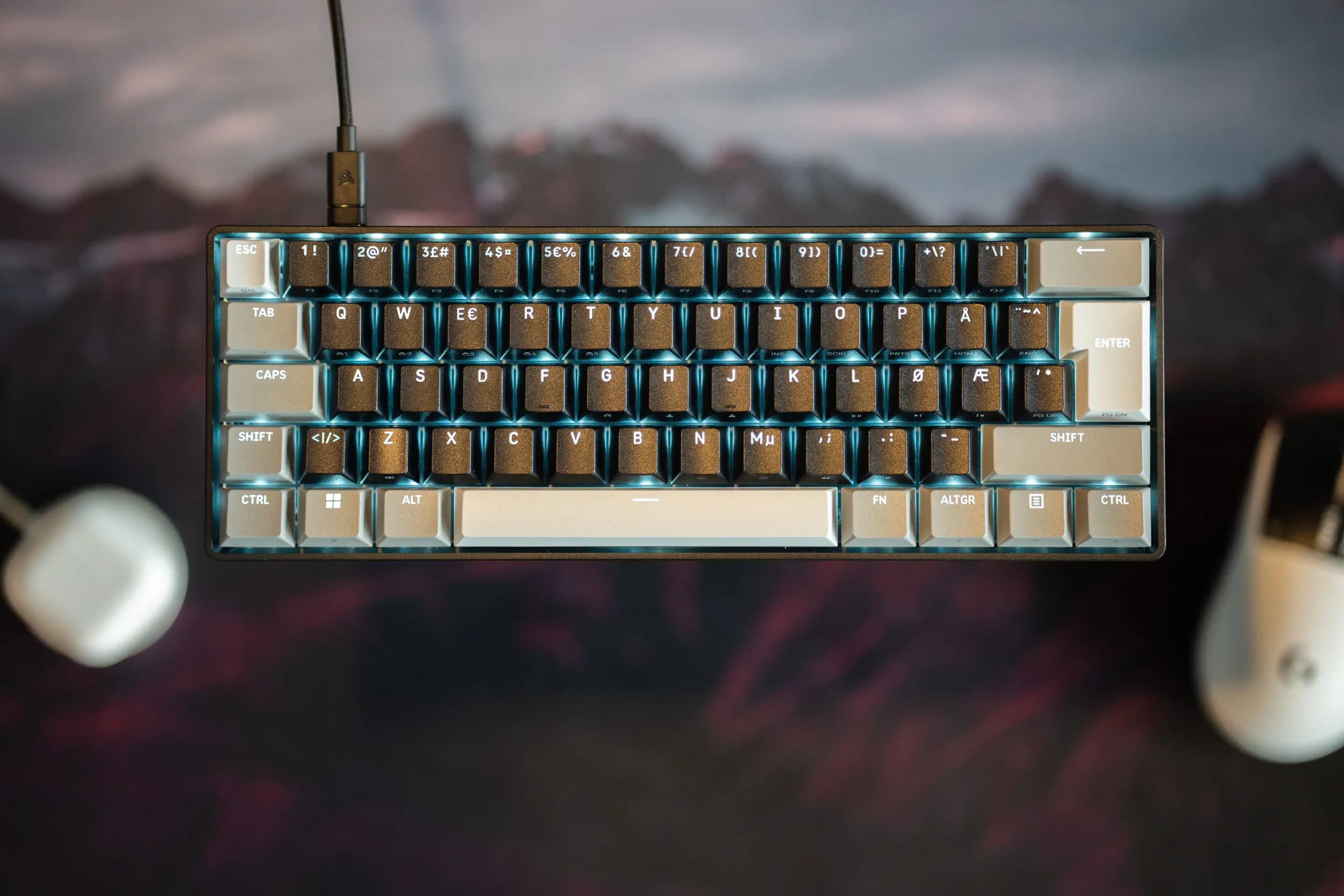 The legends are easy to read, and the Scandinavian keycaps have proper ø and æ. | Credit kaytomas.com
Typing feel and sound test
I really like typing on the Clipper Pro Mini. The sound isn’t as good, not as deep as pricier keyboards, but it’s still satisfying to hammer away on. Letter by letter, word by word. In fact, the draft for this review is an example of text written on that very keyboard.
Check out the sound here.
While the Clipper Pro Mini 60 feels cheaper than several of the other keyboards I’ve tested recently, it doesn’t make it bad. Because the Clipper Pro Mini is also significantly cheaper than the other keyboards I’ve tested.
It also sounds good in person, even if the sound doesn’t fully come through in the videos below. The audio was recorded in float 32 and normalised during video export and conversion.
When I listen to the video the sound comes across much sharper than what I experience in reality, and I am unsure why. I’ll leave the sound example up for now, since I will be away from the office for the foreseeable future.
See for yourself in the clip below.
Typing and sound test of the Corsair Clipper Pro Mini 60. | Credit kaytomas.com
Firmware and Web Hub
I’m a big fan of online configurators and can happily report that the Clipper Pro Mini 60 supports Corsair Web Hub.
No software is required to configure the Clipper - it’s all done through the browser and Corsair Web Hub. Worth mentioning that the Web Hub can be “saved as an offline app” in the browser, for offline use later.
The main advantage is that it works no matter which machine you’re on (given you use Edge, Chrome or Safari as your browser). My firmware update worked exactly as you’d expect, on the first try. No error, troubleshooting, googling or contacting PR people. Great!
The first time I opened the Web Hub, I immediately got a message that I wasn’t on the latest firmware. I was guided to the updater, and the whole thing worked without any issues. Lovely. Pats on back to Corsair for having a working, solid online configurator. Trust me, that is not always the case.
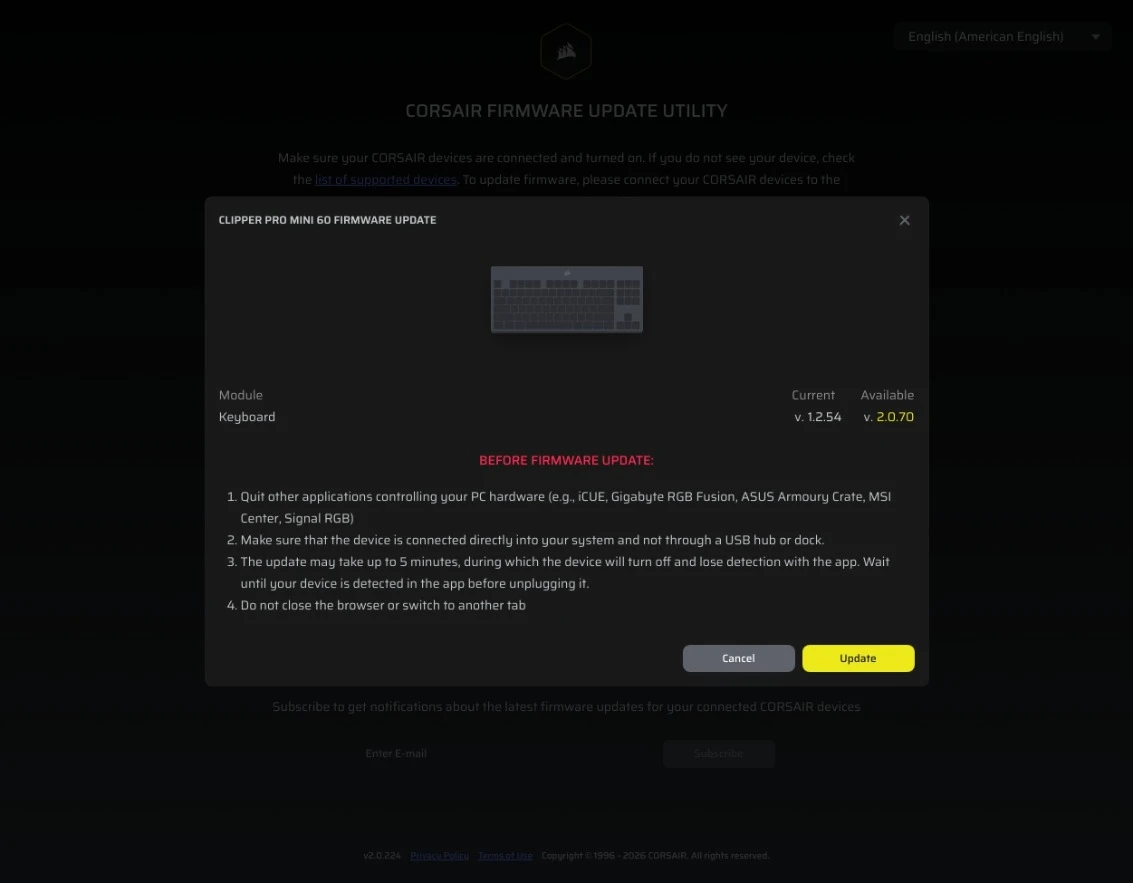
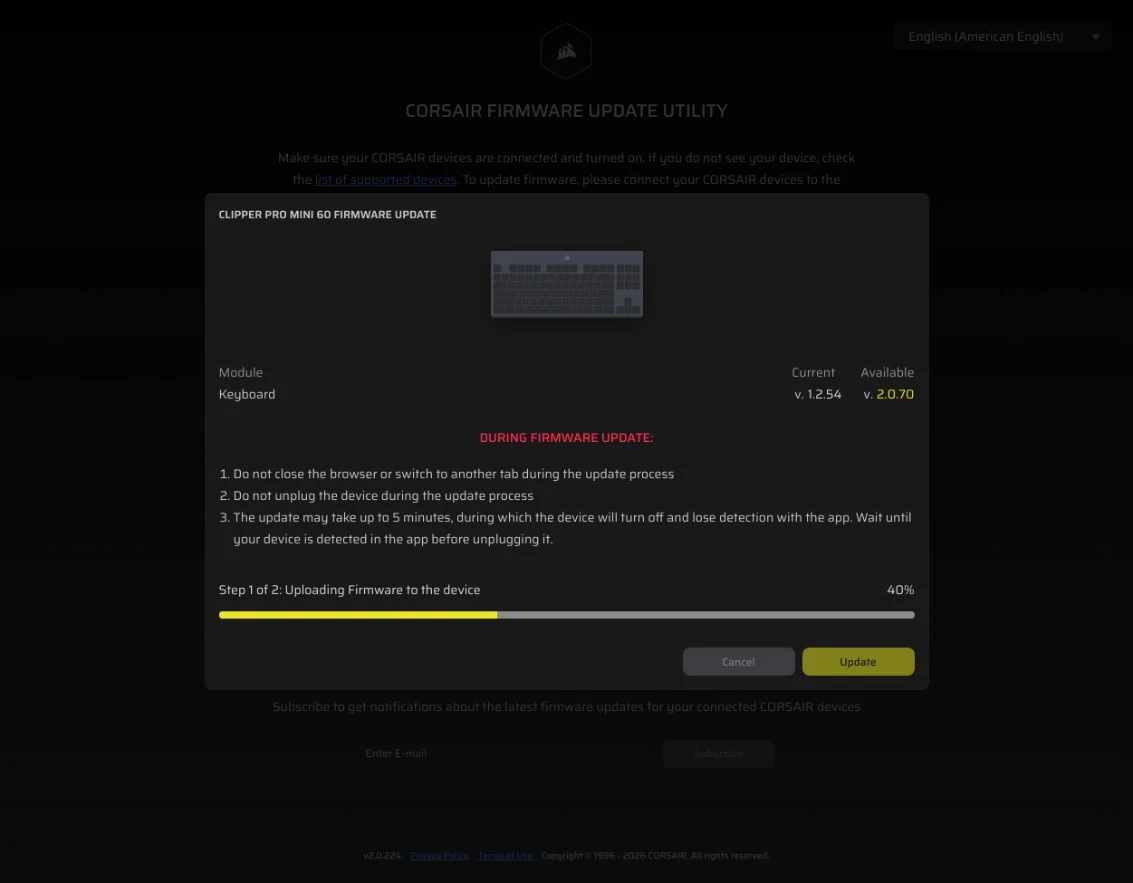
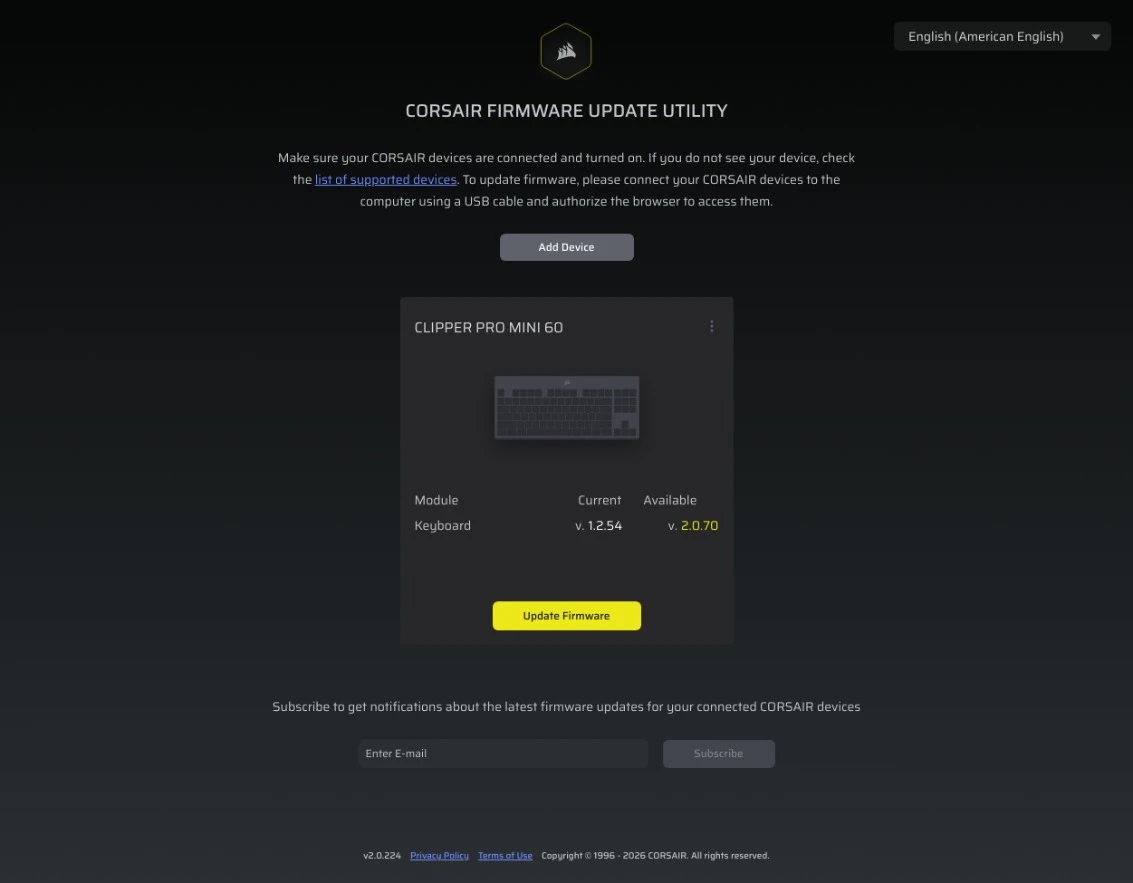
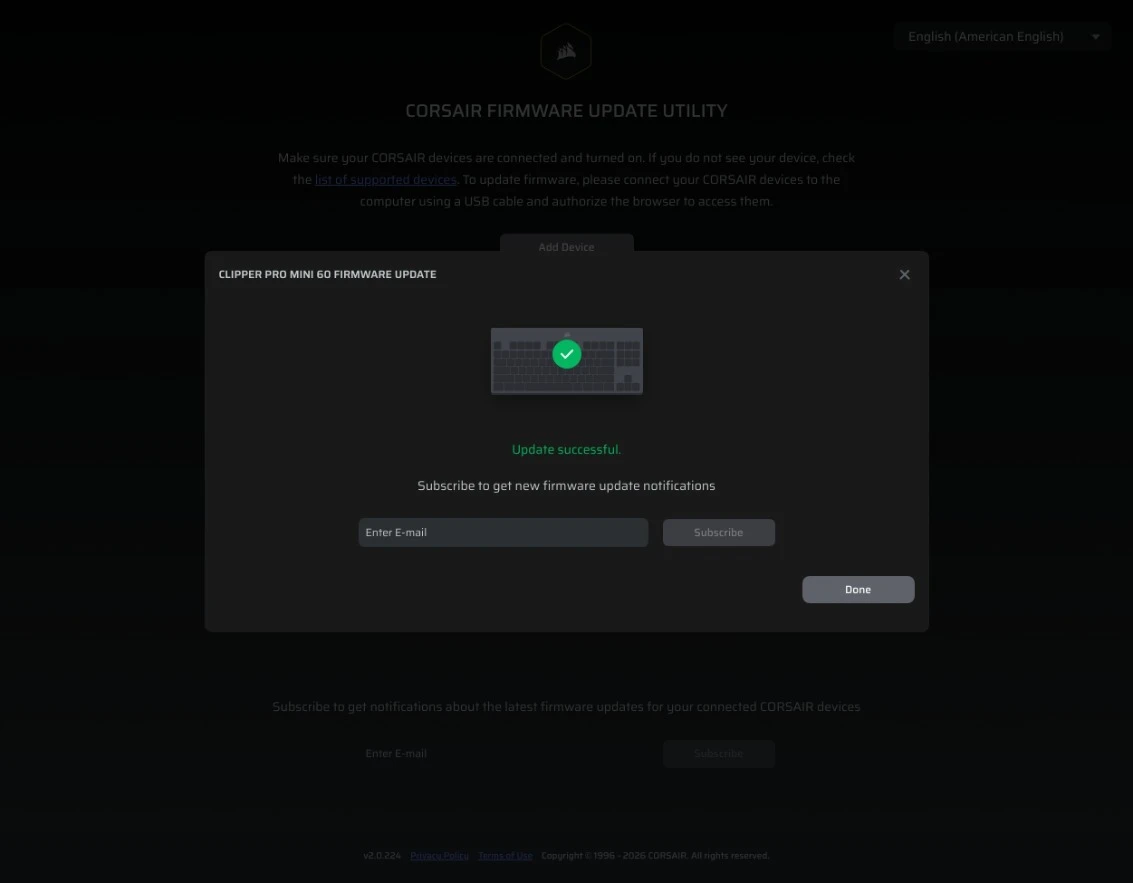
The entire firmware update went straight through in the browser via Web Hub. | Credit kaytomas.com
Switches and actuation point
The keyboard uses Corsair’s adjustable Hyperdrive Core switches. Core is a cheaper variant than the MGX Hyperdrive switch in the MAKR Pro, and this is a separate, lighter switch - not just a downgraded version of the same one.
The MGX Hyperdrive Core actuates at 27 to 40 grams (versus 30 to 55 grams on the MAKR), has slightly shorter travel (4.0 vs 4.1 mm), and is rated for 100 million keystrokes against 150 million on the MGX Hyperdrive.
I was also puzzled by the square stem when I pulled off a keycap. Turns out it’s on purpose, Corsair built a square wall around the stem to reduce wobble. And you can feel it, the keys sit steady and precise, without any play or wobble.
The actuation point is set to 2 mm by default, and you can adjust it from 0.2 to 3.8 mm. After testing a fair few keyboards with different actuation points, I feel 2 mm is the sweet spot for me, without much, or any, mistyping.
Another really clever feature, which Corsair deserves kudos for, is that you can adjust the actuation without involving the Web Hub at all. You can adjust the point directly on the keyboard: hold Fn+H to lower, Fn+J to raise. The value shows up on the number row, whole numbers in red and decimals in yellow. :mindblown.gif:
This time I actually left the actuation point at 2 mm through the whole test period. I hit the keys surprisingly well straight out of the box. I mean, I make plenty of typos, but almost none of them can be blamed on keys that didn’t register, or registered too eagerly. It was perfect right away.
And 60% is simply lovely to type on. A really nice size.
The keycap finish is a little smoother than I’m used to. But I love how my fingers glide over this keyboard. It’s exciting to use, especially when I keep the affordable price in the back of my mind.
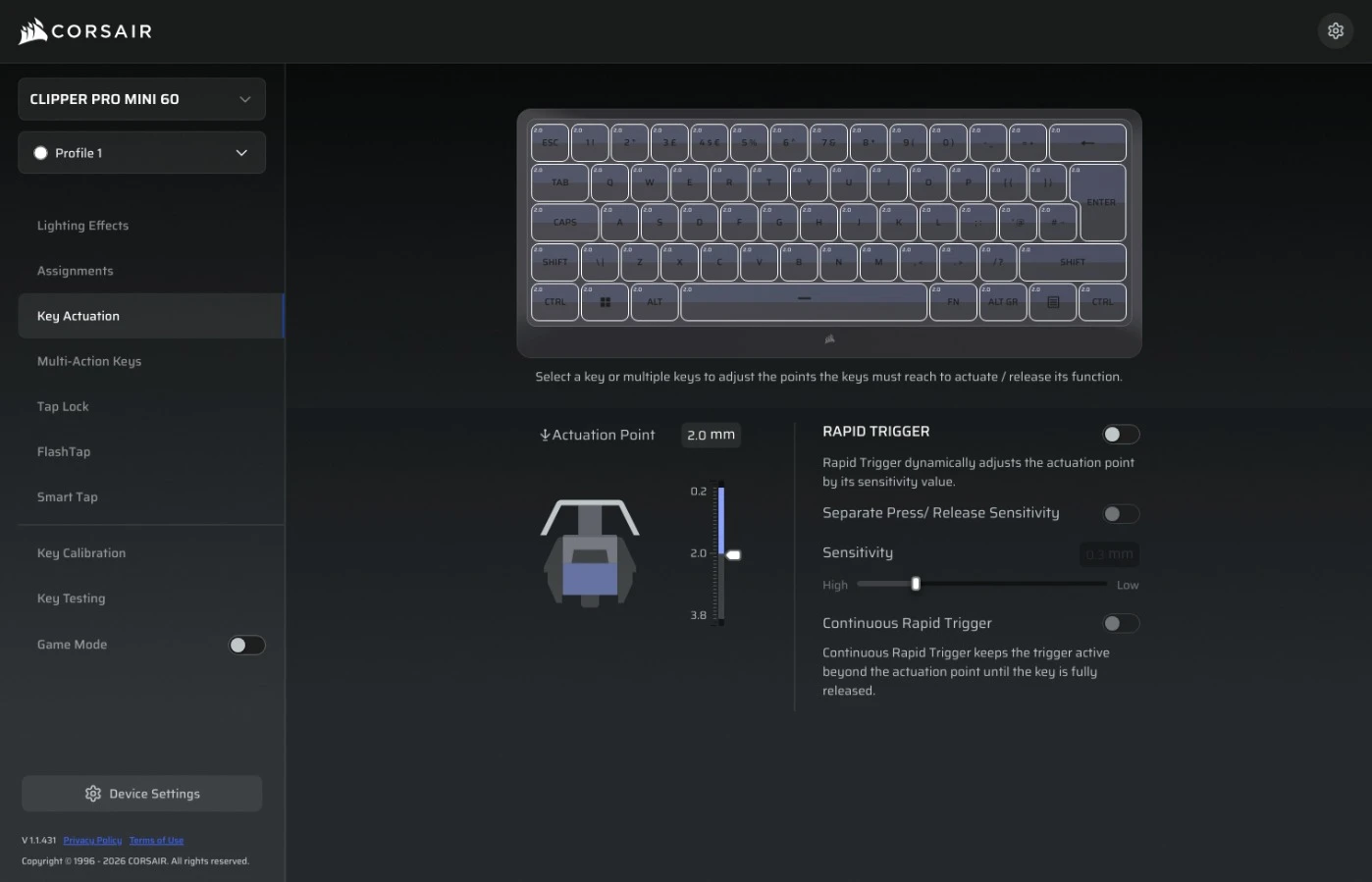
The actuation point sits at 2 mm for me, adjustable from 0.2 to 3.8 mm. | Credit kaytomas.com
The arrow keys are on Fn
On a 60% keyboard you have to use Fn to reach the central arrow keys. It’s a matter of getting used to it, but something I expect everyone can manage - with a little adjustment period.
Some people use the arrow keys much more than others, to jump back a word for example - if that’s you, prepare to reprogram your muscle memory.
If you’re used to a full keyboard with a function row, home, delete, page down, page up, dedicated arrow keys and so on, 60% will feel small. But it does depend on how quick you are to pick up new typing habits and what you plan to use the keyboard for.
After using this for a few weeks I don’t feel it’s any big problem to type on. Even if that particular combination of shift, ctrl and arrow keys gets a notch harder when you also have to hold down an Fn key.
In the past I’ve personally had issues adjusting to 60%, maybe especially with the key combination I mention above, but this time I felt it clicked after a couple of days.
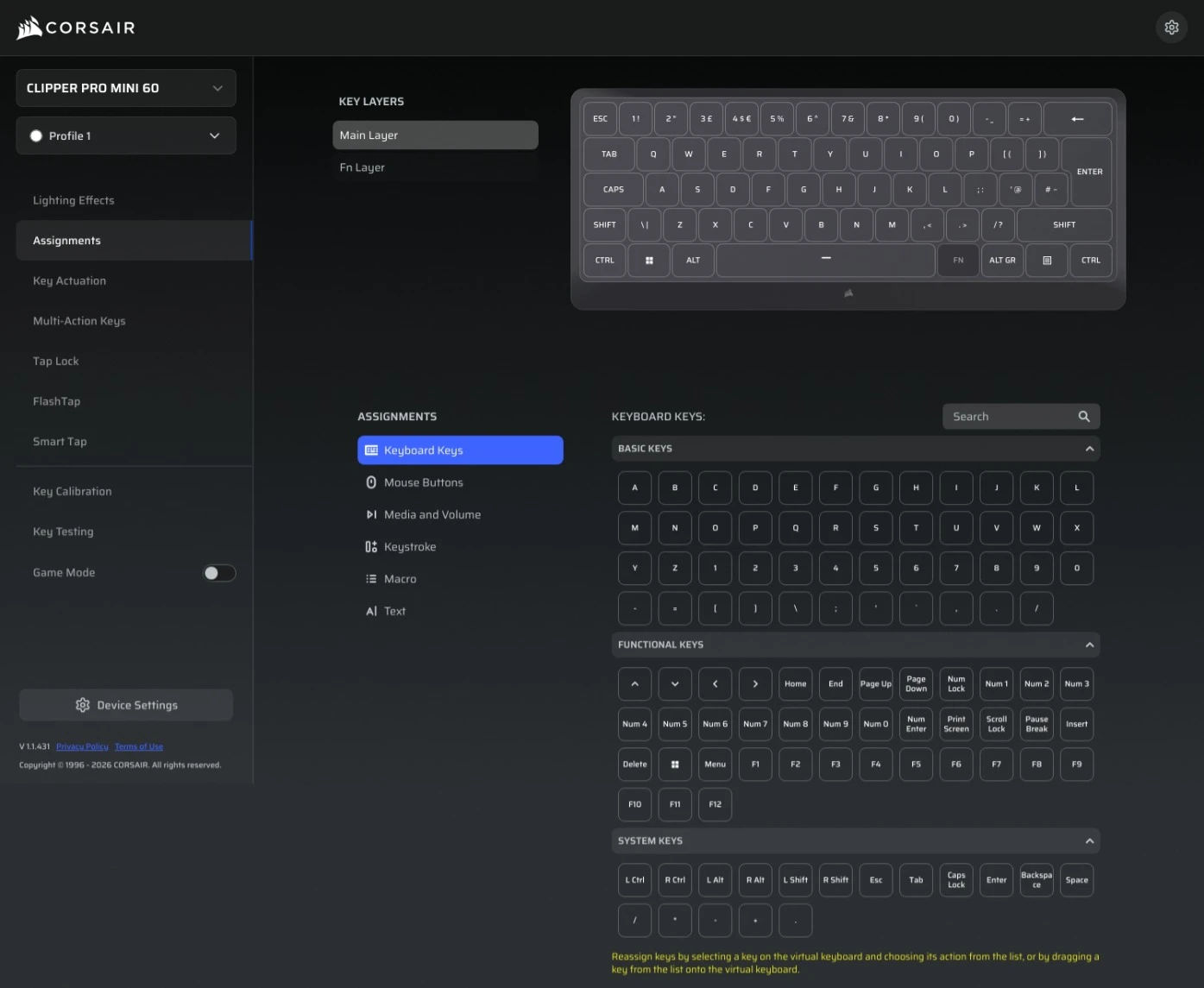
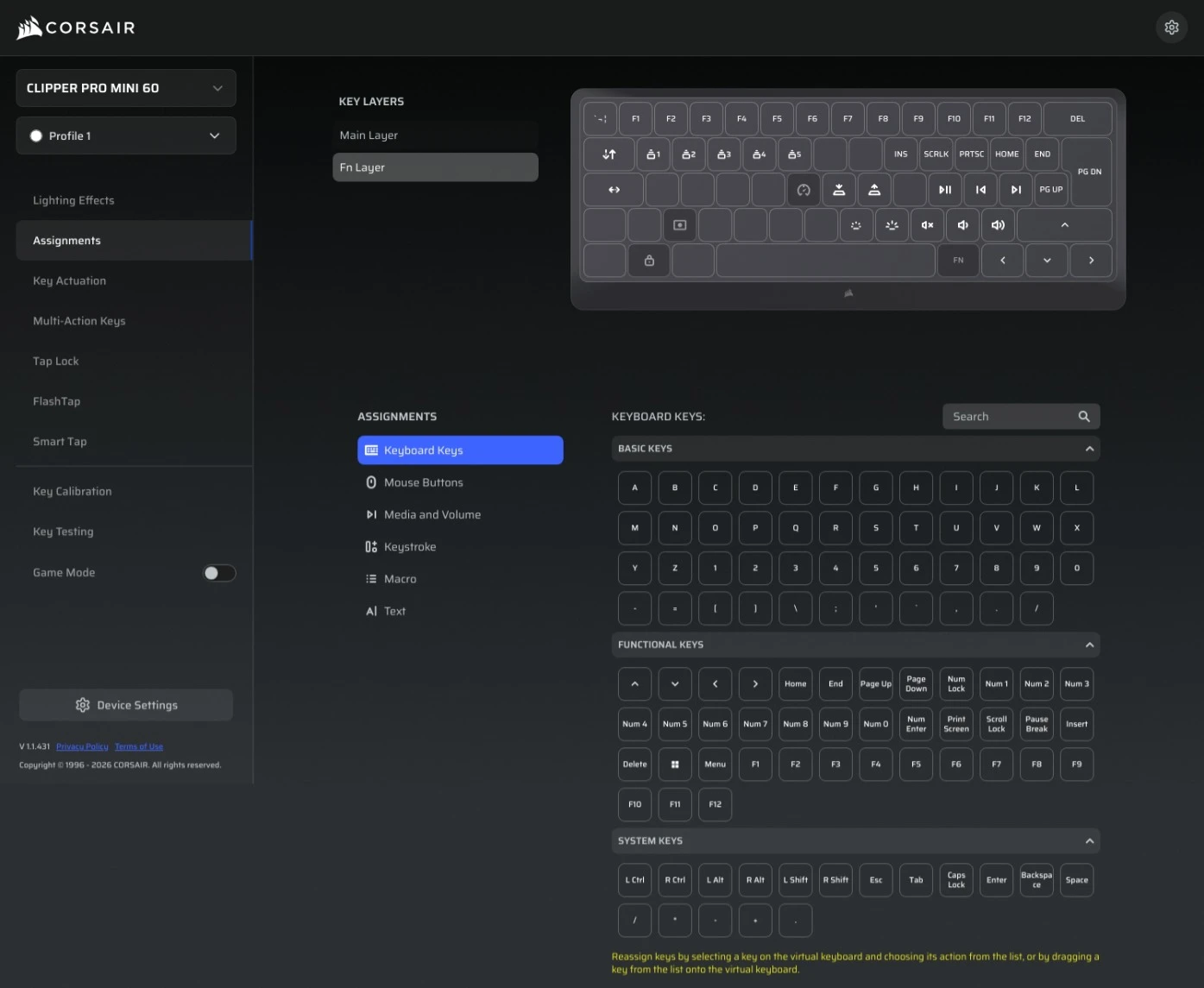
The arrow keys and the rest of the secondary functions live on the Fn layer. | Credit kaytomas.com
Multi Action, Tap Lock, FlashTap and Smart Tap
The typical HE features are here too. It’s nice to see them trickle down into this price range as well.
Multi Action puts up to four actions on one key, Tap Lock turns a hold like crouch into an on and off toggle, Smart Tap gives a different action on tap versus hold (handy for arrow keys without Fn), and FlashTap is SOCD handling for counter-strafing. Rapid Trigger is here too.
Under the hood the keyboard runs 8000 Hz polling via Corsair’s AXON. And when you get that polling rate on top (even if I personally don’t think you need that on a keyboard) together with the IP57 certification that makes this somewhat resistant to dust and moisture, you’ve got a solid package.
I haven’t tested gaming on this during the test period (no time for much gaming with reviews and the World Cup going on at the same time), but I have no qualms recommending it to gamers, even without having tested that myself. Simply because the total positive experience of using the Clipper Pro Mini, its sound, typing experience, lightness, accuracy plus HE features, will suit gamers.
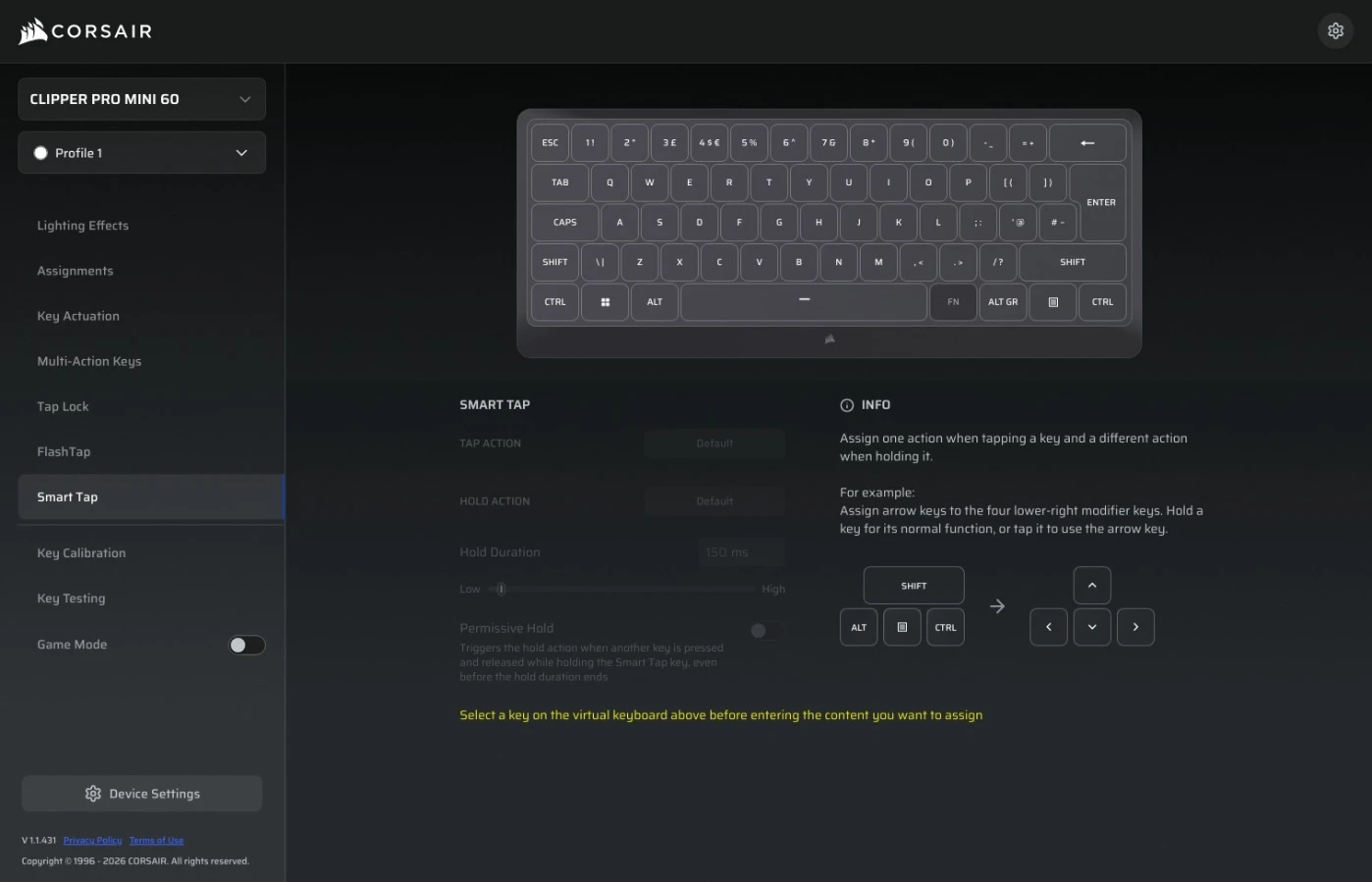
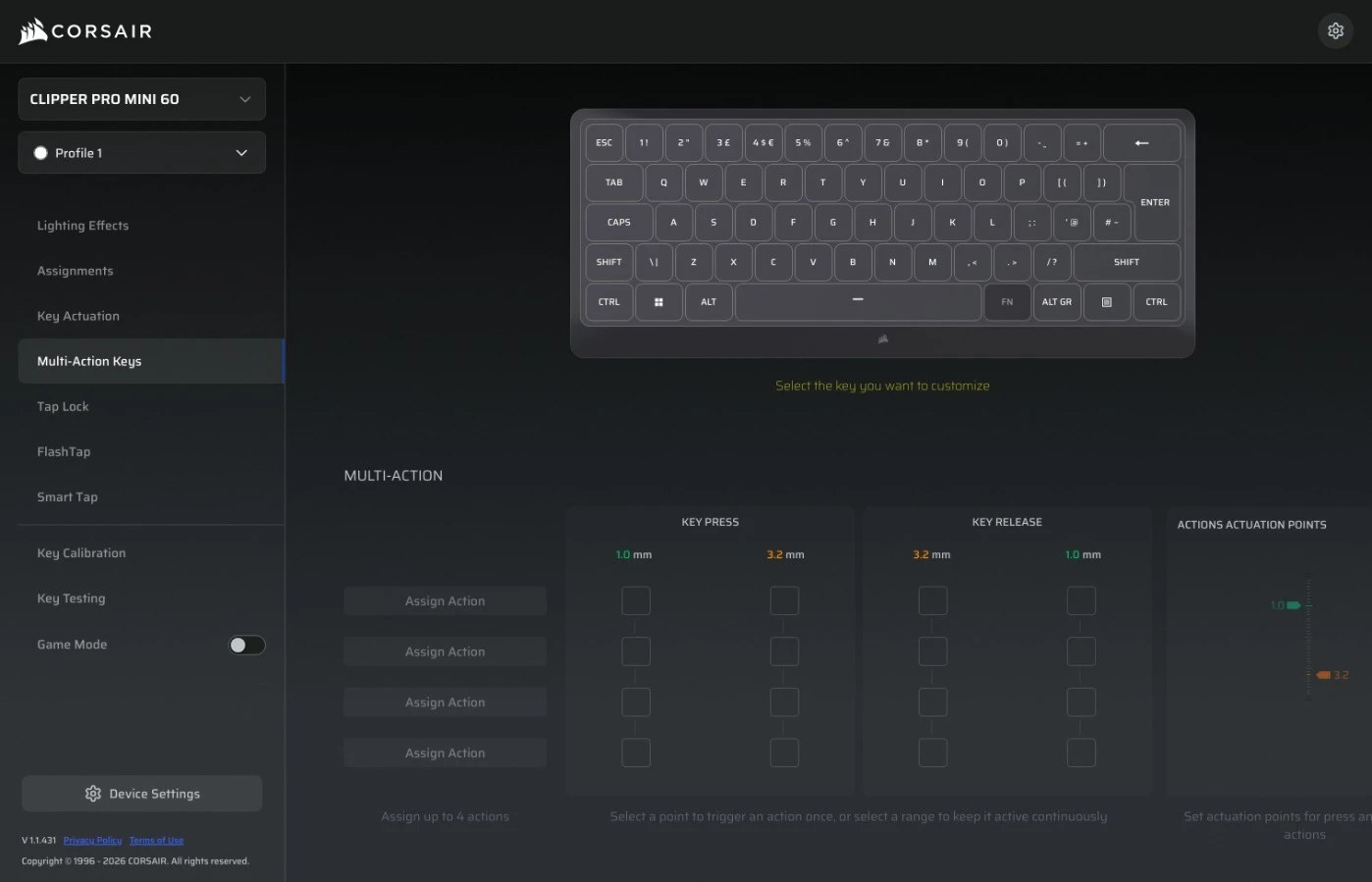
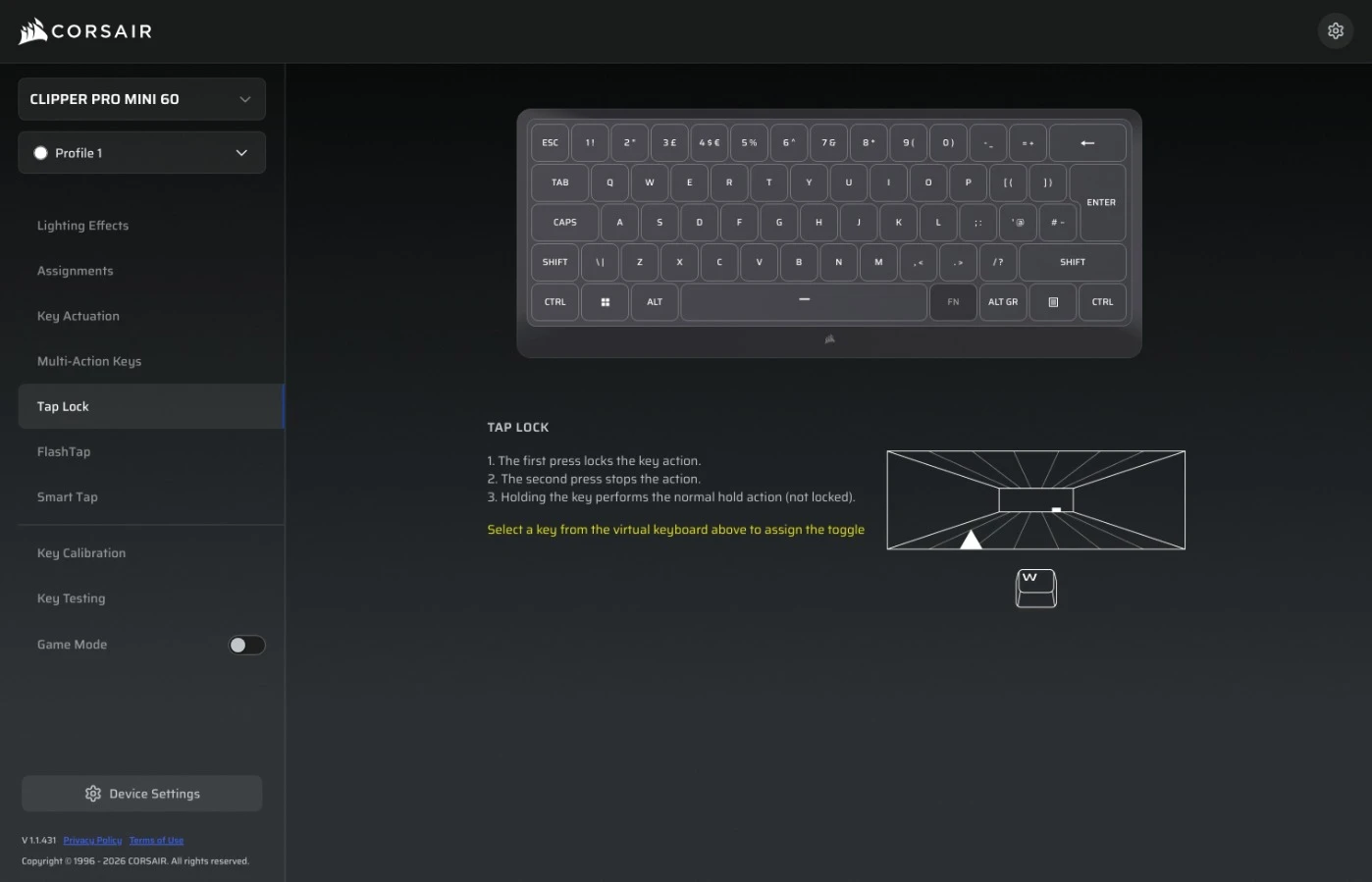
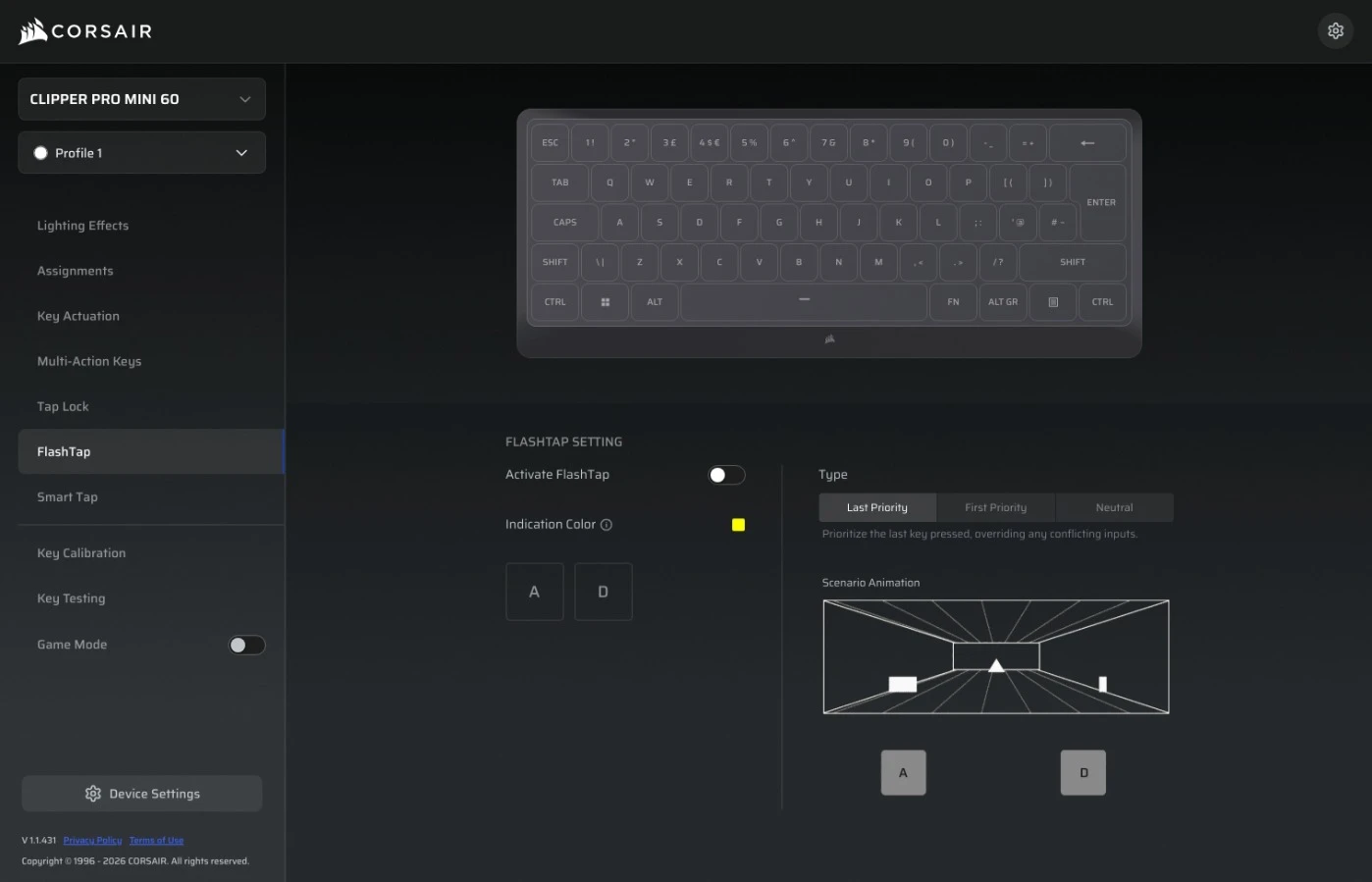
Multi Action, Tap Lock, FlashTap and Smart Tap are all present in Web Hub. | Credit kaytomas.com
Surprisingly solid for the money
So to sum up: of course it could have been heavier, had a different quality feel, had swappable switches, but in this price point this is a very good keyboard. I’m surprised by the whole package and the feel relative to the price you have to pay.
I remember being pleasantly surprised when I unpacked it and tested it for the first time on the kitchen counter. I was very positively surprised. It’s a stylish, comfortable, good little keyboard.
The only real downside is that it feels light, but I can’t really complain about that at €99/$99.
One upside of it being light is that it’s very travel friendly. You barely notice it in your bag or backpack! Nimble on the go. If you want wireless or Bluetooth, well, then look elsewhere. And that’s totally fine, because those features will push the price up.
I also tested the Keychron Q1 HE in the same period, at a completely different price - and it goes without saying that you notice the difference in sound and overall quality feel. But that’s the whole point, at €99/$99 I expected less and I was pleasantly surprised.
All in all I think this is a great little keyboard. I enjoy typing on it, had no problems during the test period, the sound is good (even if it doesn’t come through in the sound test), the Web Hub implementation is a positive, the RGB options are solid, the firmware update went through without issues, and I feel the cost-cutting Corsair has done relative to MAKR Pro is worth it. Especially considering the price lands where it does, nearly 1/3 of the price of the MAKR.
And honestly? It’s hard for me to put a score on this. Because a) I am genuinely enthusiastic and like it, and b) I have a tendency to give a lot of products good scores.
I comfort myself that I haven’t tested that many keyboards in this price bracket, and so the Clipper Pro Mini 60 lands on a solid 5 out of 6.
There you have it, it gets a solid recommendation from me.
Disclaimer
Corsair sent me the Clipper Pro Mini 60 for review, but they have no impact on the verdict, opinions, text or images. All opinions are my own.
