
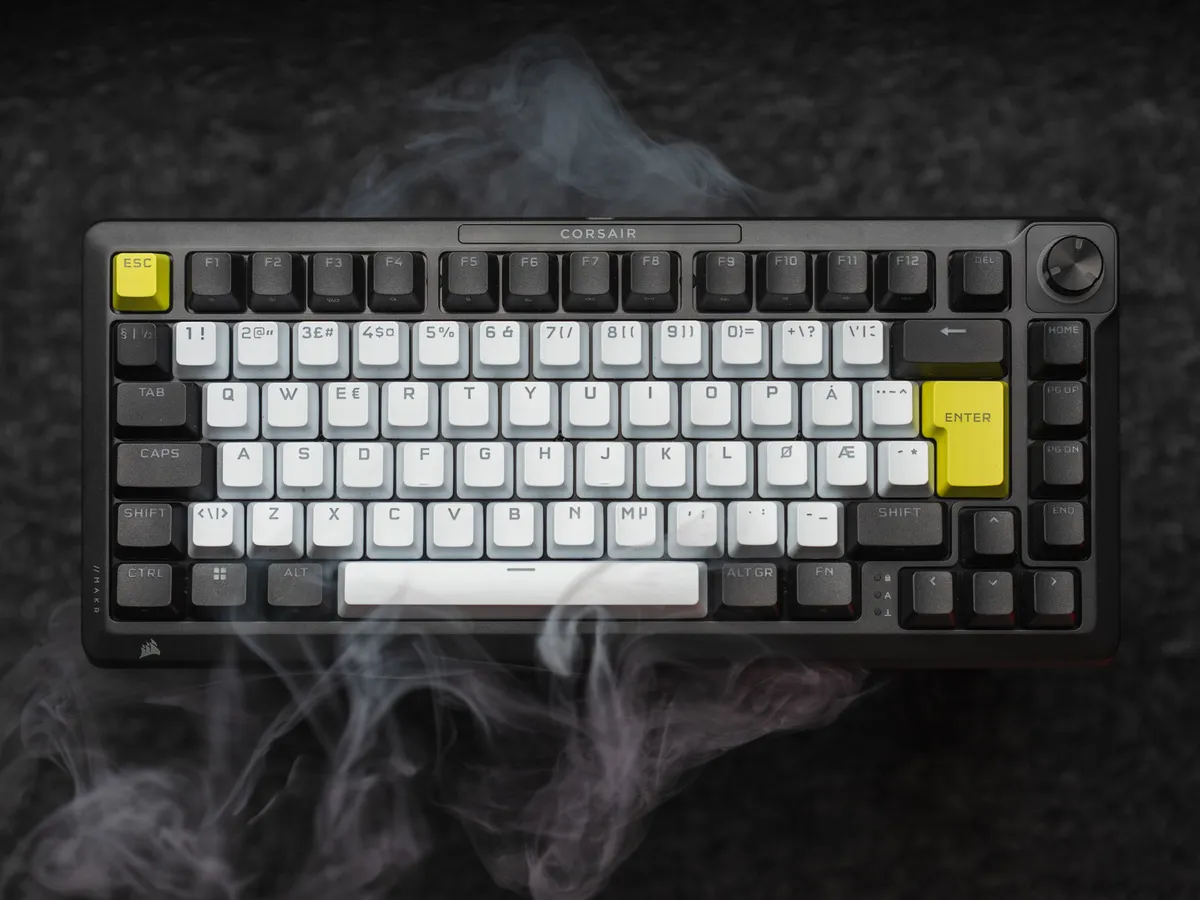
What you get in the box
Corsair gives you exactly what you expect at this price range, in the box.
You get a keycap and switch puller, the standard kind that will absolutely break eventually, vacuum-packed Nordic keycaps (that I love seeing included), a braided USB-C to USB-A cable, and the keyboard itself wrapped in a soft plush sleeve rather than the usual plastic bag.
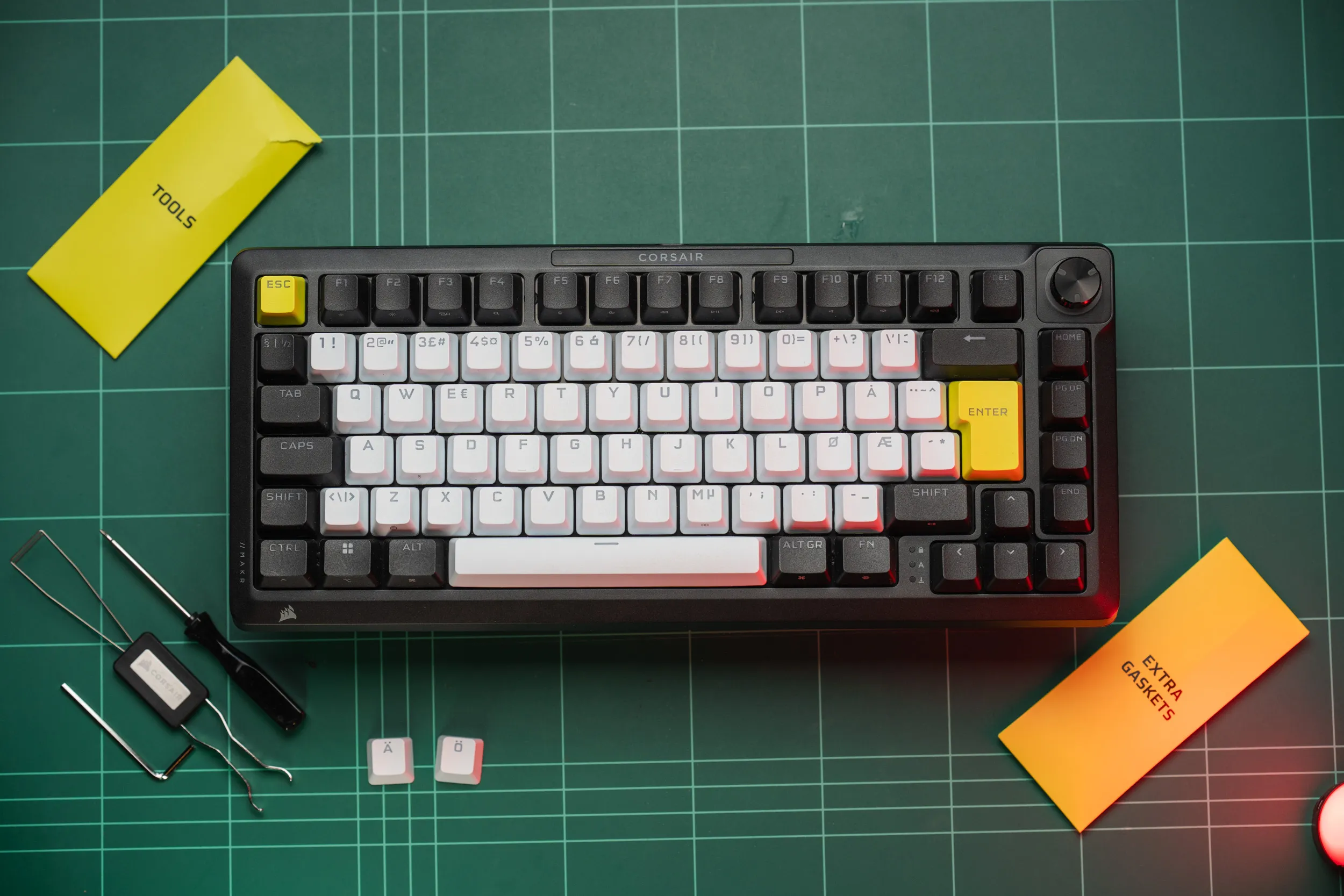 Everything that ships in the box, including the labelled tools and spare gaskets envelopes and a set of extra Nordic keycaps.
First impressions and unboxing
When you open it up the first thing you meet is a QR-code link to the manual and a sheet showing the Fn shortcuts. That sheet is a really nice touch, because the Fn shortcuts are exactly what you need on the day you set the thing up.
Once I pick it up I am immediately struck by the very solid build quality, mostly thanks to the aluminium top and bottom. The keyboard is also heavy, weighing in at 1303 grams on my scale.
It feels solid, and more so than the product shots and packaging show. On screen I thought it looked a touch tacky with its white, yellow and black colours - but in person the full aluminium body negates that feeling completely.
Corsair went with yellow accent keys on Esc and Enter, and it pulls off a sort of bold, cyberpunk-y (think Marathon) aesthetic that is too aggressive for my immediate liking, but something I have grown to like during my testing period.
The colour scheme might not be for everyone, but it is bold.
The 75% layout hits just perfect, giving you the function row, a knob, dedicated home, page up, page down and end keys. I am happy to report that there is just enough spacing around the arrows to keep them usable without frequent typos for us frequent CTRL+arrow key users out there.
I have said it before and I will say it again, I am a big fan of layouts in the 65 to 75% range, and with its increased spacing around the arrow keys, the MAKR PRO 75 hits the spot perfectly.
The USB-C port sits dead centre at the back, which is ideal no matter which side your PC lives on. Left, right, under or on top - no biggie. The cutout is recessed into the case, and every cable I reached for, including thicker third-party ones, seated cleanly.
Underneath there are nine Torx screws, a PC/Mac switch, and feet that are hard plastic but snap on with magnets. By this point in time, I think we all can attest that yes, magnets are magic, and I love how the feet snap on to the keyboard.
The trade-off however, is that unlike fold-out feet, you cannot make these feet magically disappear.
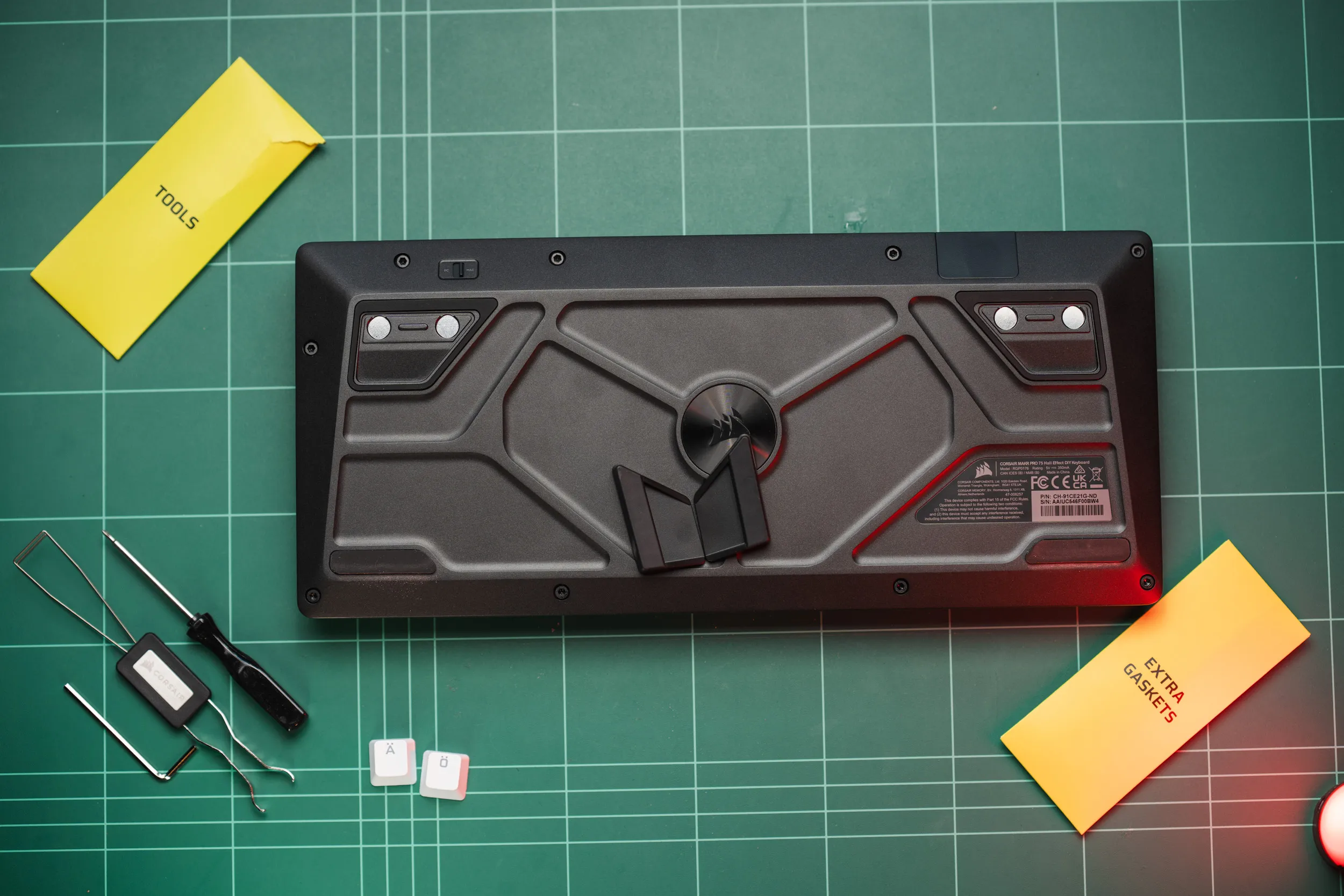 The underside lays it all out: nine Torx screws, the magnetic feet, the central Corsair badge, and the PC/Mac switch up top.
The plastic feet snap on with magnets. Hit play with sound on to hear that satisfying click (and lots of background noise).
That PC/Mac switch is nice to see, but as with other keyboards, this only switches what keys act as cmd and alt and other unique Mac keys.
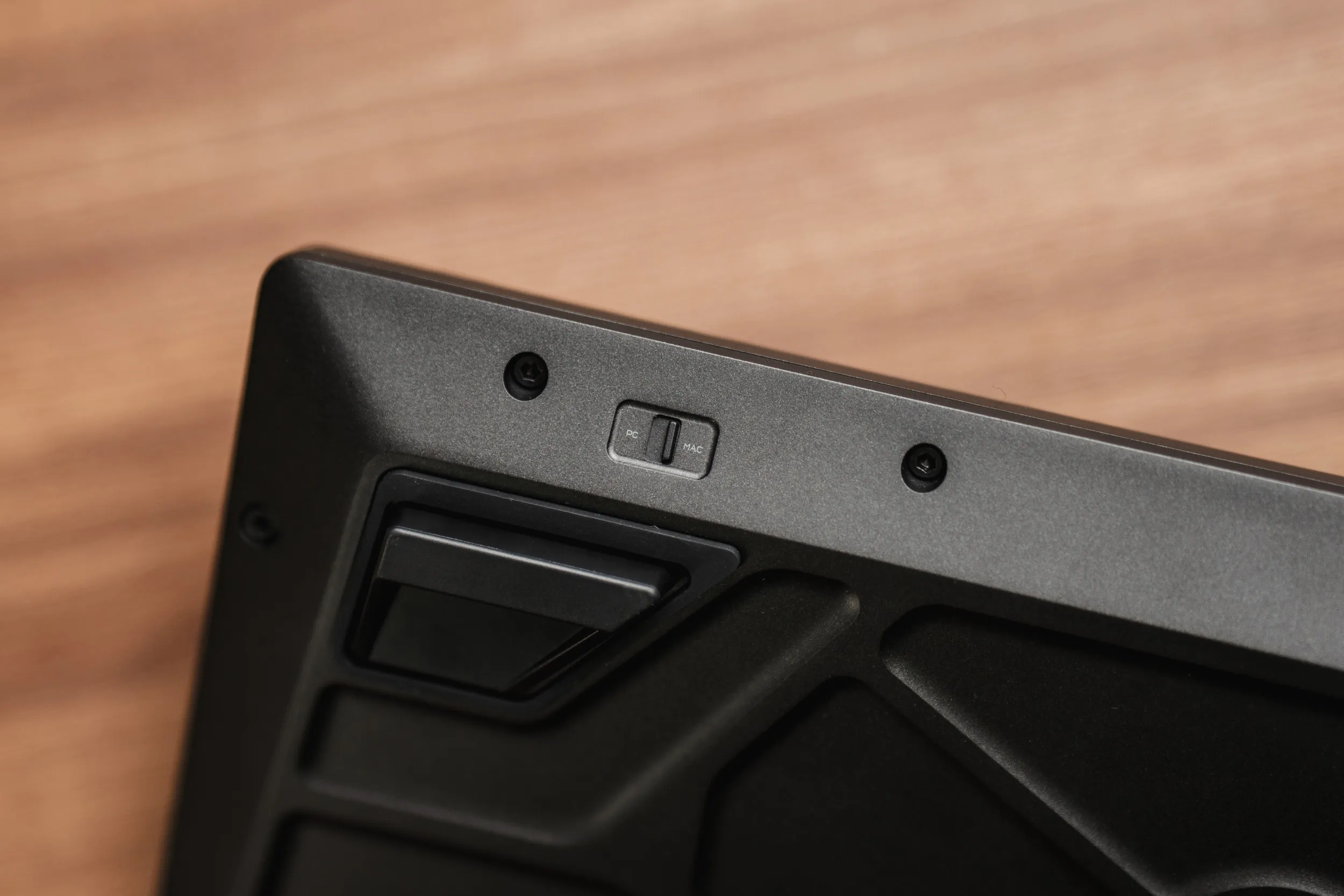 The PC/Mac toggle sits recessed in the base, flanked by a couple of the Torx screws.
The MAKR PRO 75 also works on PC, Mac, Xbox, and PlayStation, though I only put it through PC and Mac myself.
Sound test / typing experience
Sound is subjective, and also hard to describe in words, so rather than doing that - here is the board in action. Have a listen, and judge by yourself.
And if you would rather watch and listen, here is the same test on video.
Typing test on the Corsair MAKR PRO 75 / credit kaytomas.com
I like the sound, it’s muted in a good way.
Wait, only USB-A?
Yep, you read that right. This means that if you are on a slim Windows laptop, or a MacBook, you’re gonna have to dig out the cable accessories.
Is this right in 2026? No. And it is my duty to tell vendors the time of USB-A has passed (that actually happened several years ago). At least ship with a USB-A to USB-C adapter!
Pricing
We are in the definite premium segment here.
In Norway the Corsair MAKR PRO 75 is priced at 2,995 NOK. Exactly the same level as the Wooting 80HE ISO with keycaps.
In the rest of the world, the premium pricing is upheld, with a price of $249 in the US, €249 in Europe and £219 (God save the king).
Typing feel and switches, once dialled in
I’ve had the keyboard for about two months at the time of typing the review, and it’s not been the exclusive keyboard I have been using for that time, I’ve been coming back to it on and off during that period.
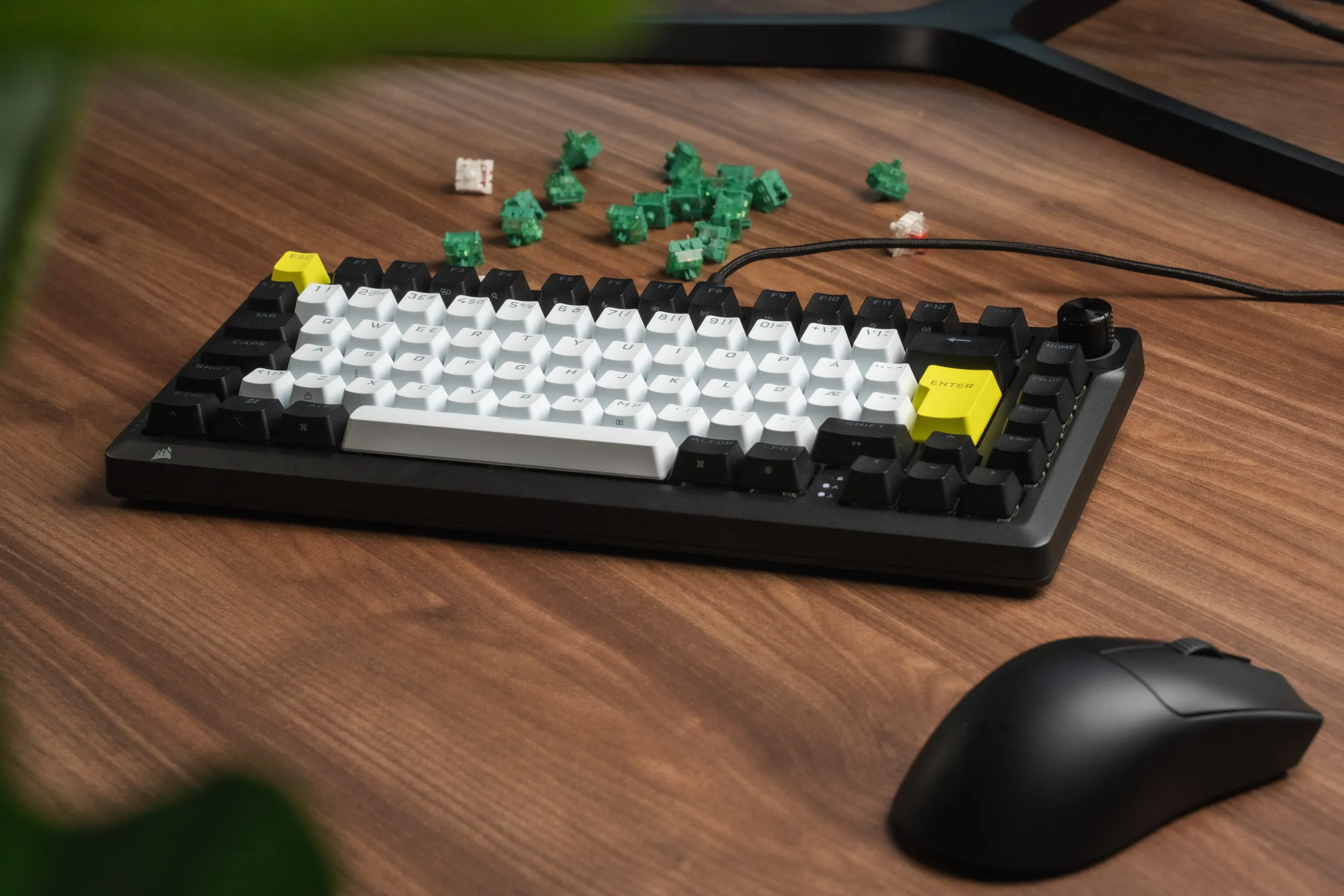 The board on my desk in its natural habitat, with a handful of spare MGX switches behind it.
I really like using this board.
During the first few hours I noticed I was fumbling and missing keys. I was getting the odd pre-registered press before I meant to commit, which was a little disconcerting.
It turned out the actuation was set too shallow for me. A quick adjustment to around 2 mm and the problem disappeared, which is sort of the whole idea of an adjustable Hall Effect board.
You can set actuation anywhere from 0.1 to 4.0 mm in 0.1 mm steps, the MGX Hyperdrive switches run 30 to 55 g, they are rated for 150 million keypresses, and the board ships at 1000 Hz with up to 8000 Hz on tap. Do you need to run a keyboard with 8000 polling rate? Nope.
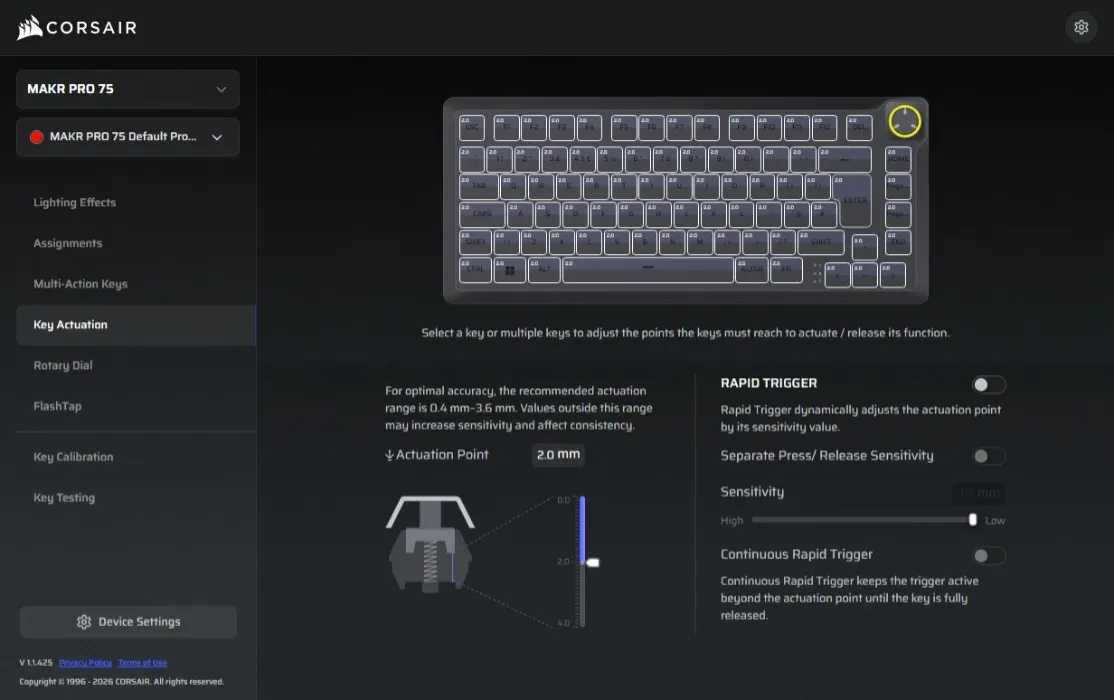 Dialling the actuation back to around 2 mm in WebHub, which is where the pre-registered presses stopped for me. | Credit kaytomas.com
All of that adjustability lives in the switches themselves. They are Corsair’s MGX Hyperdrive: magnetic Hall Effect, pre-lubed from the factory, and hot-swappable. They feel solid, and that factory lube is part of why the board sounds settled straight away, with no scratch or bad sounds. The board also supports other magnetic switches.
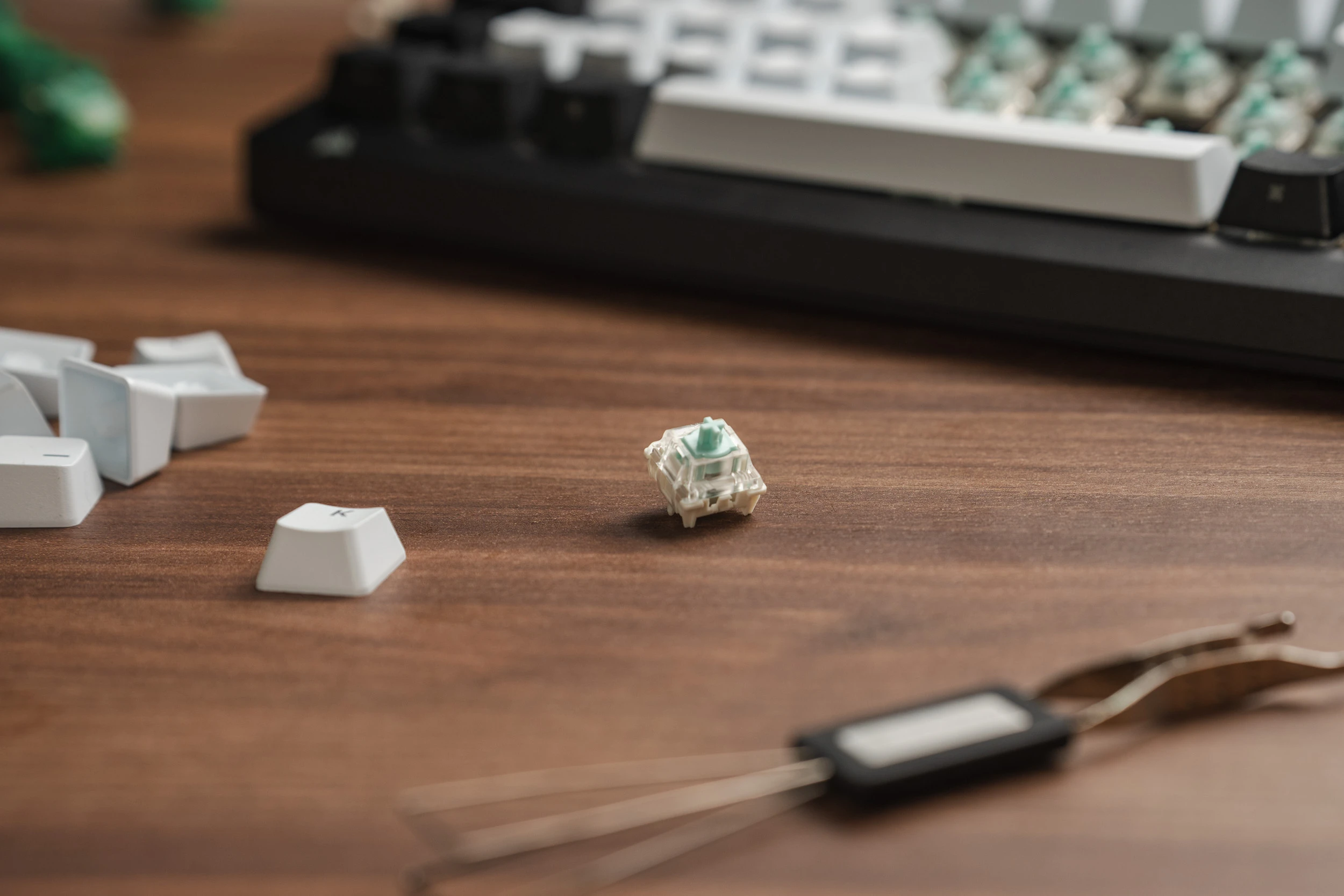
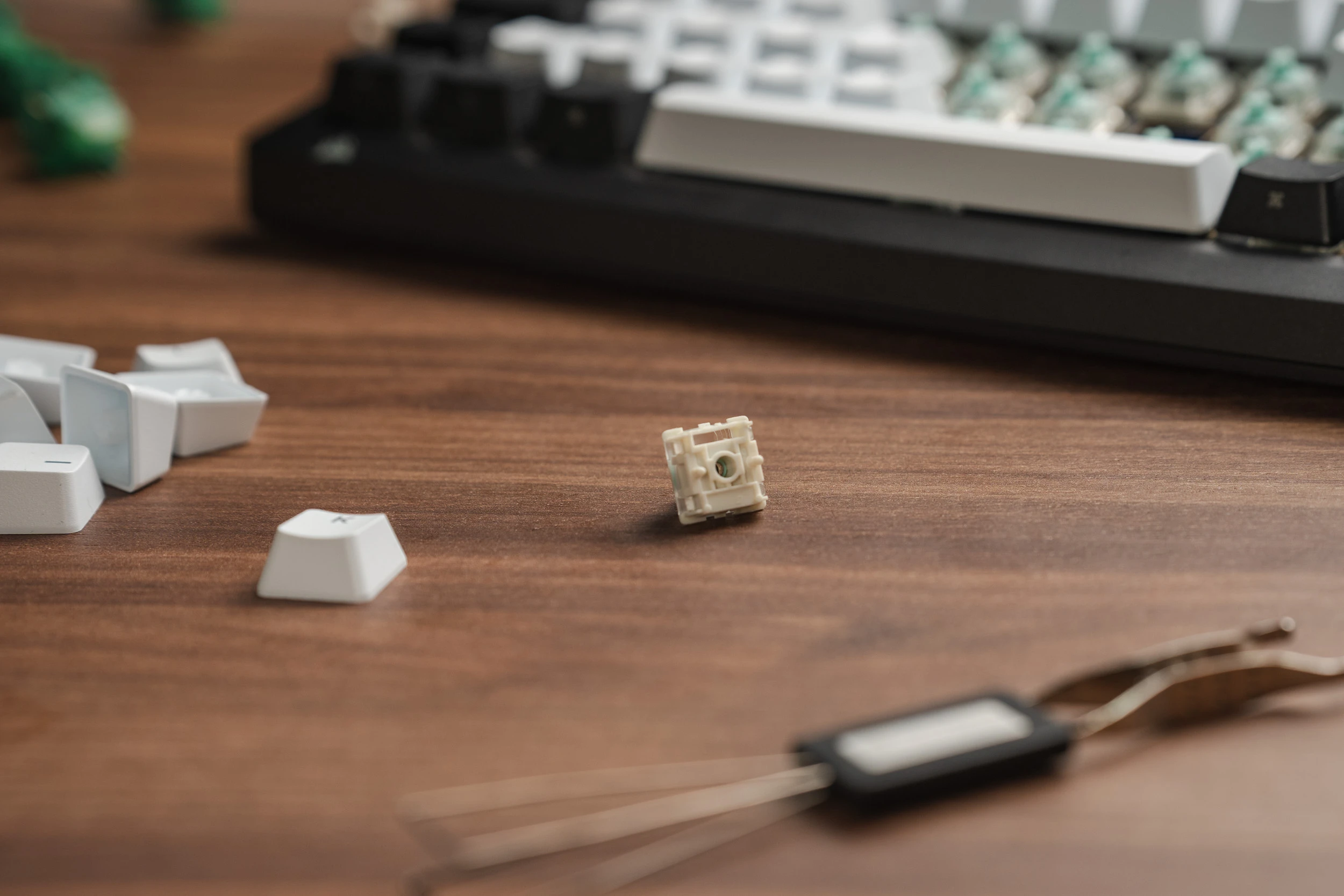
Corsair’s MGX Hyperdrive magnetic switch up close, the Hall Effect switch the whole board is tuned around.
Wobble test
Hot-swap also means you can feel how the switches sit, and there is very little play experienced in them during typing.
A quick wobble test, wiggling a keycap to show how much the switch moves in the socket.
Testing nude, both the switches and stabilizers have a little wobble. And again, this is something I deem subjective, but the switches are fixed with only two knobs beneath and do move around when I test them in this particular scenario. This is not something I feel during usage, but it is worth noting.
To me the sound is good right out of the box, spacebar included, with none of the hollow rattle cheaper boards fall into.
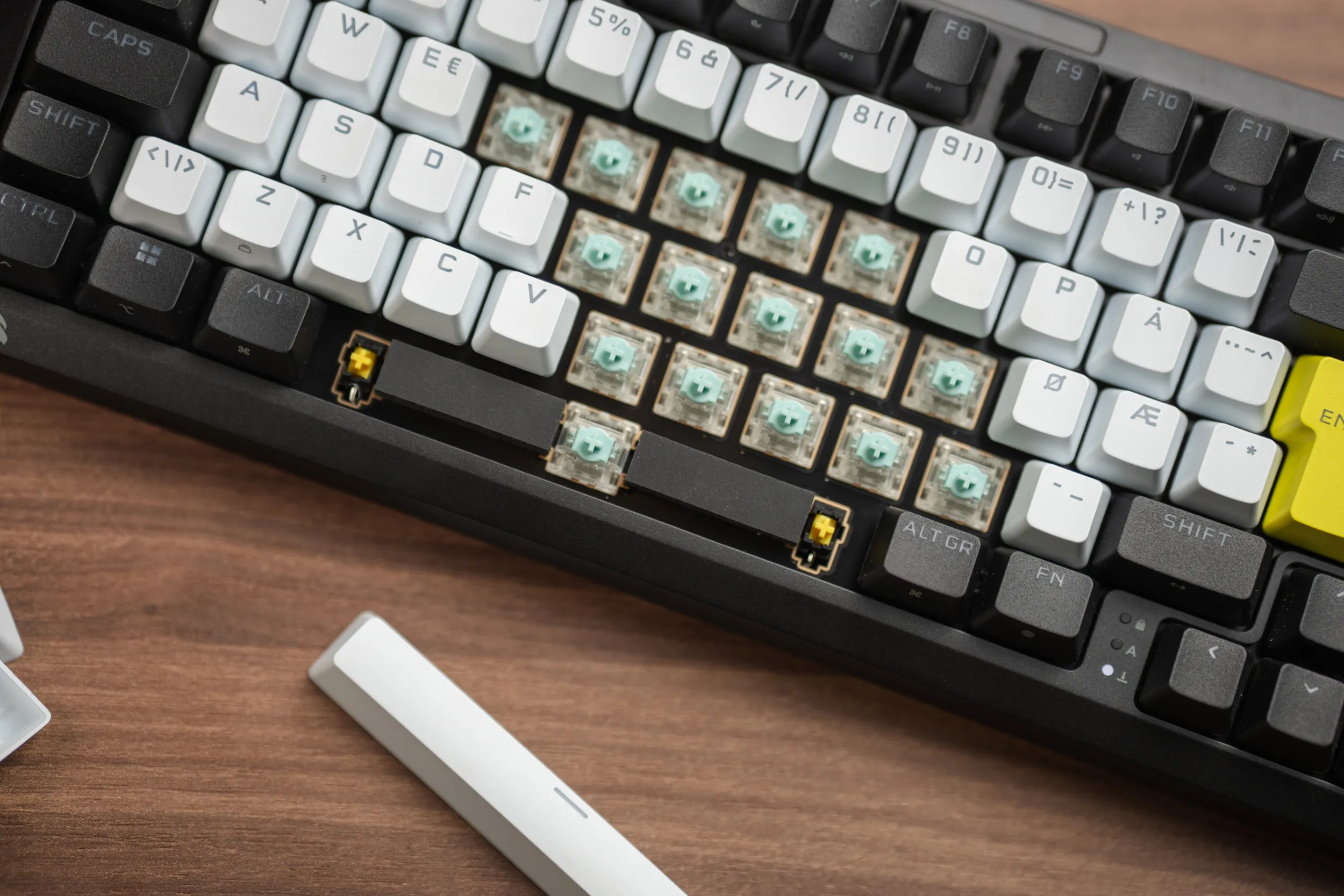 Dampening materials are placed behind the spacebar. | credit kaytomas.com
And towards the end of the review period, when I had been back and forth with the keyboard (and as I am typing these very words on the board), I have to say I really enjoy the typing feel and sound.
It is gasket-mounted, yet there is very little flex, which is unusual. Other reviewers call it stiff, but I personally don’t mind it. I can feel it is stiffer, but still very enjoyable to hammer along on. It feels firm and satisfying, and that hardness gives a tactile snap even with the linear switches.
Gaming features
On competitive gaming I will be honest, the same way I have been in the past in my reviews. I play at a level where Rapid Trigger and tighter actuation make little difference. They are real features, and they will make a faster player faster provided you dial these settings in, but for me playing Slay the Spire and the occasional match in ARC Raiders, it doesn’t change the overall feel to a degree I can document.
All my off hours go into this page, leaving no time for gaming.
The board has the rest of the modern Hall Effect toolkit too. There is FlashTap (Corsair’s take on SOCD, where the last key pressed wins on opposing inputs like A and D), and dual actuation, where a single key can fire two different actions at two depths. I have not tested either in my kind of play, but on a Hall Effect board in 2026 this is feature parity.
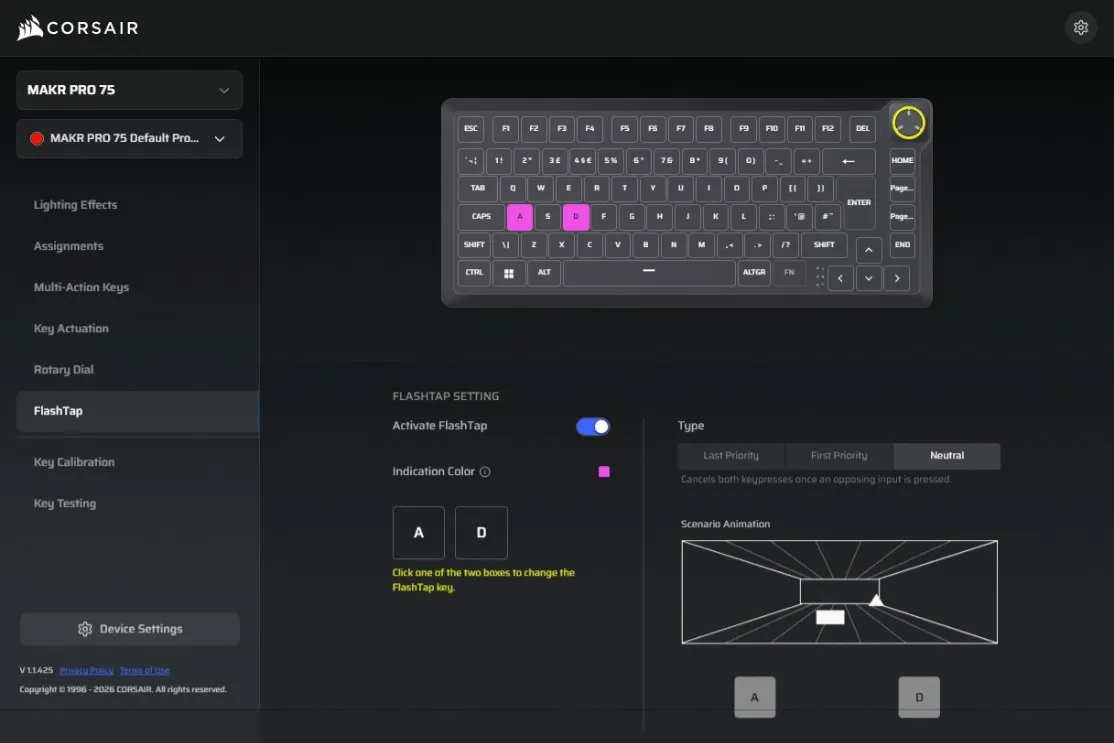 FlashTap in WebHub, Corsair’s SOCD handling for opposing key presses.
Rotary dial
You like knobs? I know I do, on keyboards and just in general. The MAKR PRO 75 had my attention here!
The knob feel is good. Each knob notch is easy to discern as you turn it, and while the click-in is a little hollow, you always know when it has happened.
In software, web or installed, you can bind the knob to a wide range of actions, and there is a clever layering system on top: hold the knob in for about two seconds and it switches to a different layer with its own functions. The background colour changes based on what layer you are on, so you will learn what colours are tied to what actions.
Hold the knob in for about two seconds to switch layers, with the colour shifting to show which layer you are on. | credit kaytomas.com
There is a decent number of pre-assigned presets, from volume to scrolling, but you can also create your own preset for the knob. You choose a colour (so you can recognize what layer you are on) and then continue to assign the three actions per layer: rotate left, right and press.
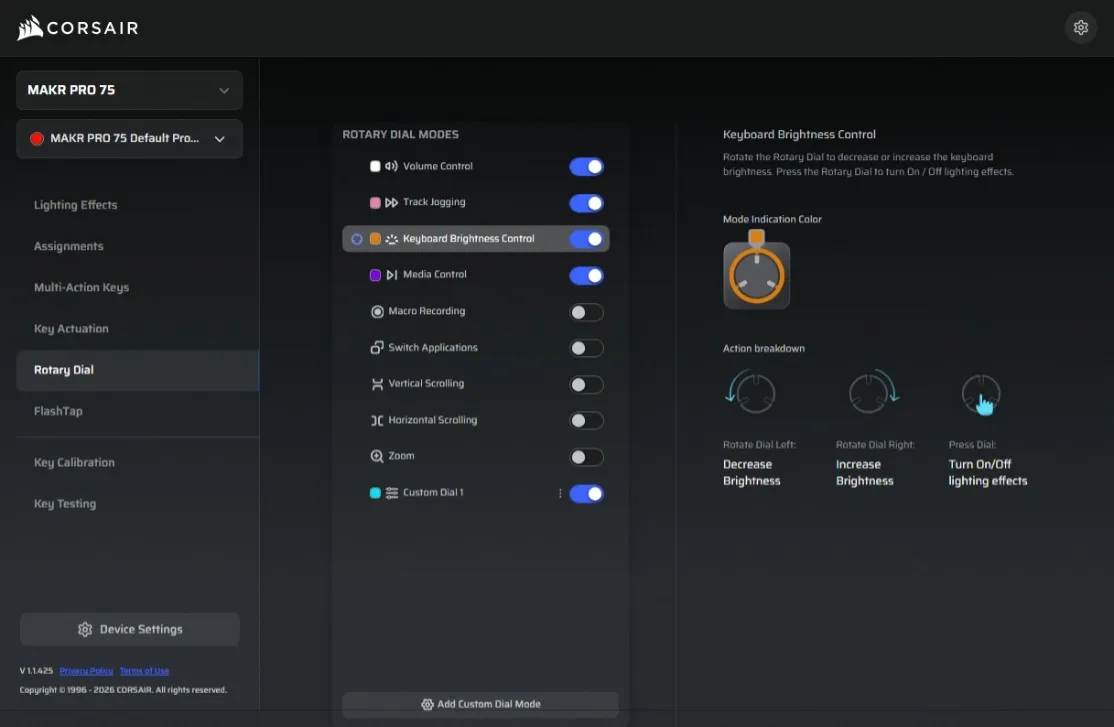 Play with knobs! | credit kaytomas.com
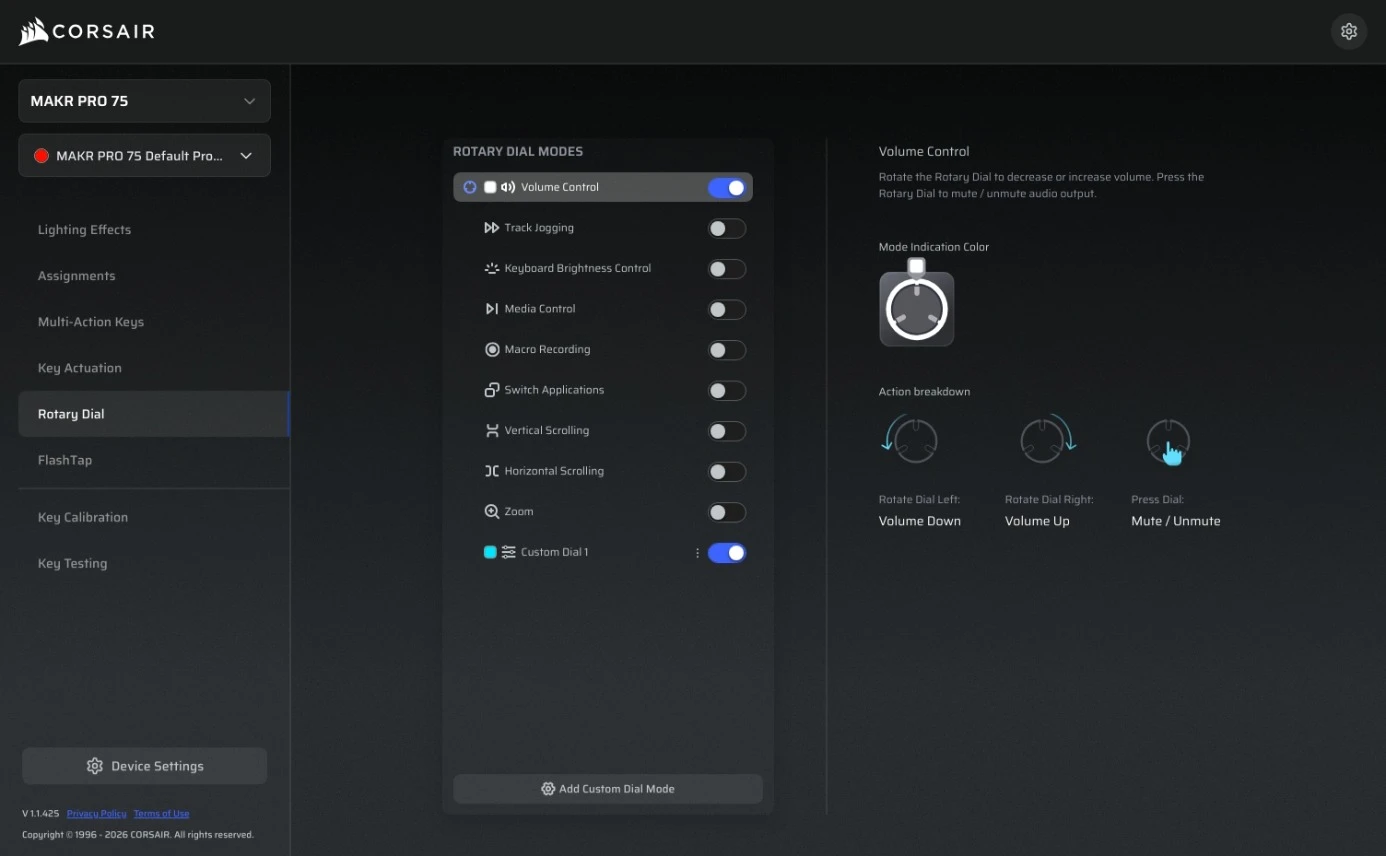
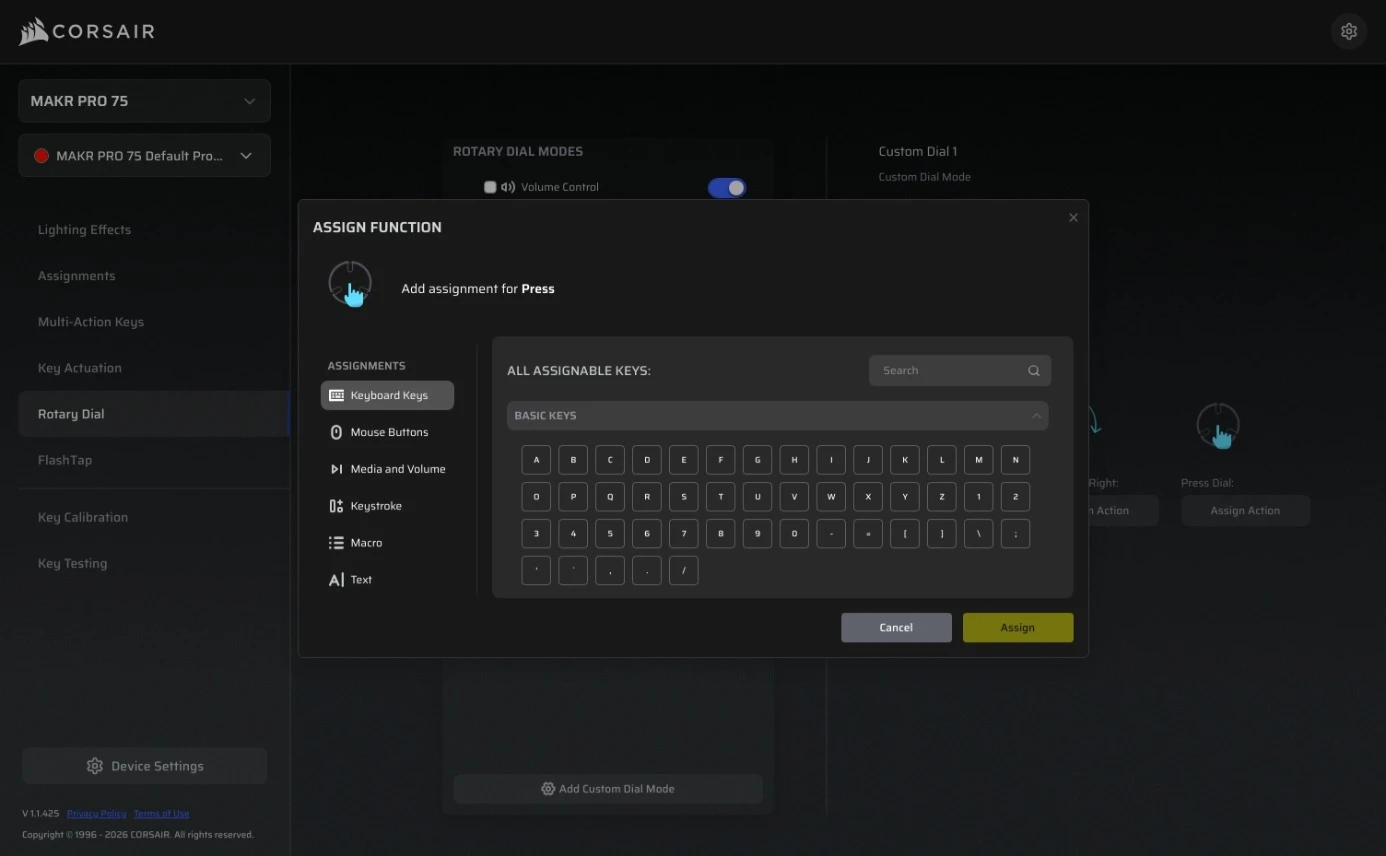
The dial config in WebHub: ready-made modes plus a custom layer with its own colour (left), and the Assign Function panel for binding any key to rotate or press (right).
This is a very clever implementation, and I think you can do whatever you want. Personally I like my dial to control volume up and down, plus Discord mute when pressed. This is done by assigning a custom keybind to Discord mute in Discord (normally something I never press, like F13), then setting the same key in the knob config.
In theory this works on the MAKR PRO 75 as well, but I will have to settle for another keybind for Discord mute, since Corsair is not including the invisible F keys that are above F12 (F13 to F24).
So, Corsair, if you are reading this, add support for the extended F row in the software.
Keycaps and lighting
The keycaps are white double-shot PBT. White base colour with a transparent section for the legends, making the RGB underneath shine straight through them.
The keycaps have a light texture to them, and they remind me a lot of the Wooting double-shot PBT caps I tried recently. They are a tall OEM profile, which is part of why the typing position feels familiar coming from most mainstream boards. PBT resists the greasy shine that ABS picks up over time, so these should last and I see no shine after my two months testing time.
And the RGB itself is, to my surprise, tasteful out of the box. A slow, calm pulse, nothing aggressive. It can get more colourful once you configure further, but the default is decent and calm enough to keep on for all those defaults out there.
The lighting shining up through the transparent legends. You can push it as colourful as you like once the software is open.
In the video above I am testing some of the different RGB options, and yes - I do find it hard to light and record light at the same time.
Tweaking software settings
You are going to have to tweak at some point, and to my genuine surprise, you can do this in the browser in Corsair WebHub.
Going into this review, I was dreading installing another piece of software on my main typing machine, the MacBook M1.
You can imagine how pleasantly surprised I was when I realized Corsair is now supporting a web-based configurator!
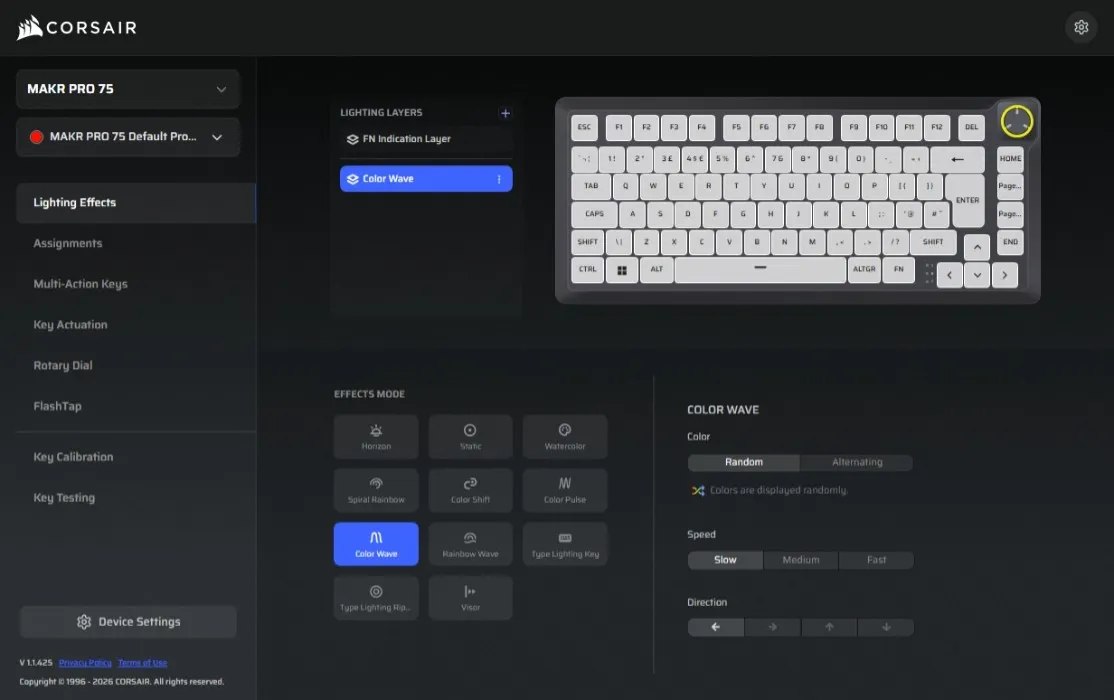 Picking a different lighting effect in WebHub. I played around with several, but tend to stay on one solid colour | credit kaytomas.com
There is the iCUE desktop app, and there is the Corsair WebHub, a browser-based version with what looks like near-full feature parity (only supported in the browsers Chrome, Edge and Opera though).
To no one’s surprise, I ended up preferring the WebHub. It installs nothing, it has a better, cleaner and more user friendly interface, and I get the sense Corsair is putting real effort into it. Both paths let you set per-key actuation, turn on Rapid Trigger, pick your polling rate, and run the calibration routine. That routine disconnects the board, has you hold each key until it registers, then flashes back. It takes a few minutes, and I am still not exactly sure on what it does, but my typing is pretty accurate post adjusting actuation distance and running the calibration.
This is the way going forward, and every hardware vendor who is still requiring installs should take notice. If you want absolutely everything, you can still reach for iCUE, but you mostly don’t have to. The browser path is right there for those who do not require offline support. If you already run iCUE for other Corsair gear and a synced colour scheme, you are probably using the app anyway, and that is fine too.
I have seen people reporting instability from Corsair WebHub, but I have seen none of those issues. It has been rock solid every time during my testing.
DIY features
This is called a DIY gaming keyboard, and I was not certain what that meant before getting to know it. Actually, I had to do some basic research to even figure that out.
I can say what it means though. The knob can be replaced with an LCD module, that can be configured to your liking, and you can get a wireless module if you want that for Bluetooth and 2.4 GHz.
While the DIY features are nice on paper, I reckon users looking for those features will buy keyboards that come with those features in the box. I am unsure who will buy a keyboard and add an extra wireless module, instead of just getting a keyboard that comes with it.
If DIY means it is easily serviceable and easy to mod and repair, I am all for that, but that is also a common feature on other boards.
The modules are available, at roughly $49.99 for the LCD and $79.99 for the wireless module. This would push a fully kitted configuration to around $380 in the US. I am still chasing the European pricing and availability from Corsair and will update this once I have it.
Alternatives worth considering
To me the obvious alternative is the Wooting 80HE. It sits at roughly the same price here in Norway, and after time with both I still reach for the Wooting as the one to beat.
Not because the Corsair has poor quality, the MAKR PRO 75 is very solid with its metal and typing feel, but because of what Wooting does. I feel Wooting’s level of quality and attention to detail is in a league of its own. They did not follow the Hall Effect trend, they created it and it shows in the details with factory-tuned everything, a long warranty, and firmware updates that keep adding features to boards people already own. That dedication is the top of the premium segment.
The MAKR PRO 75 answers back with high quality, aluminium, knob and its DIY modules, so if a dial matters to you the math might change. If you want the long version of why I rate Wooting so highly, I wrote it up in full.
If value is the priority, I think consumers should look elsewhere than both the Wooting 80HE and Corsair MAKR PRO 75. There are several high-quality boards that offer good typing and build quality, but with less of the out-of-the-box DIY features you get with the MAKR PRO 75, that can be had for a substantial amount less of your hard-earned money.
Conclusion
The MAKR PRO 75 is Corsair’s first properly serious enthusiast keyboard, and they have largely pulled it off: a heavy full-aluminium board that is a pleasure to type on, with a layered knob, pre-lubed hot-swap switches, gamer features, tasteful lighting, and a browser config that means you never have to install a thing. The awards on the box, for once, feel earned.
What keeps me from rolling a 6 is a handful of small things rather than any one flaw.
The bold aesthetics do not speak so loudly to me, and it is priced at the very top of what I believe you can ask consumers for. While the DIY features are nice on paper, I am uncertain who they are for. Wouldn’t a person interested in a wireless keyboard or a screen on the keyboard just buy that?
Buy the MAKR PRO 75 if you want a heavy aluminium Hall Effect board with a proper knob, you are happy living in the browser-based WebHub, and the look speaks to you.
Disclaimer
Corsair sent the board for review, and I took my very sweet time creating and writing it. Photos are my own and Corsair has not seen the content nor its conclusion.
